The right side of the home page shows public messages and messages posted to your groups.
If one or more Nearby Neighborhoods are turned on, you will see messages from your neighborhood and from Nearby Neighborhoods. (For help with Nearby Neighborhoods settings, see Section 7.2.3, “Nearby Neighborhoods Settings”.) If you want to see only messages from your neighborhood's residents, click the your neighborhood's name link in the “LOCAL” section. To see messages from Nearby Neighborhoods, click the Nearby Neighborhoods link. To see messages from your neighborhood and Nearby Neighborhoods again, click the Home link near the top left corner of the page.
Note
You can also click the your neighborhood's name tab below the “Post a message, event, or urgent alert to neighbors” box to see messages only from your neighborhood. You can click the your neighborhood's name + # Nearby Neighborhoods tab to see messages from your neighborhood and Nearby Neighborhoods.
Nextdoor shows the first three or four lines of each message. If a message is longer than that, you can click the View more link at the bottom of the message to read the full message. Or, you can click the subject (description) at the top of the message to see the full message on a new page. Nextdoor shows the three newest replies to each public message. If there are more replies, you can click the View all # replies link to see all replies.
The list of messages is too long to fit on one screen. Use your mouse to scroll down to read more messages.
If you want to read messages from only a specified category, click the name of that category at the left side of the page.
The message categories are:
Classifieds: Click this link to see messages about items that neighbors want to sell or buy.
Crime & Safety: Click this link to see messages about crime and safety.
Documents: Click this link to see a list of files that neighbors share with other neighbors.
Files can be in different formats, for example:
Picture or photo files can have names that end with
.GIF,.JPG,.JPEG, or.PNG.Portable Document Format files have names that end with
.PDF. You can open PDF files with software such as Adobe Reader.Microsoft Word format files have names that end with
.DOCor.DOCX. You can open these files with Microsoft Word.Microsoft Excel format files have names that end with
.XLSor.XLSX. You can open these files with Microsoft Excel.
To open files in the Documents section, you must have the necessary software installed on your computer. For example, to open a PDF file, you must have Adobe Reader (or some other software that can open PDF files) installed on your computer. To open a Microsoft Word document, you must have Microsoft Word (or some other software that can open Word files) installed on your computer.
Free items: Click this link to see messages about items that neighbors want to give away for free.
General: Click this link to see messages that do not fit into some other category.
Lost & Found: Click this link to see messages about lost or found pets or items.
Recommendations: Click this link to see messages about companies or services neighbors used, and if the neighbors recommend those companies or services
Caution
When you click the or button below a message, neighbors who can see the initial message can see your name. If you reply to a public message, neighbors who can see the initial message can also see your message.
If residents of Nearby Neighborhoods can see the initial message, they can see your name/message. They can also see some or all of your profile information.
For more information about Nearby Neighborhoods, see Chapter 6, Nearby Neighborhoods. For help with your Nearby Neighborhood settings, see Section 7.2.3, “Nearby Neighborhoods Settings”.
If you agree with a message or think the information in the message is good, you can click the green button below the message.
Note
If there is no button below the message, click the word Thank at the bottom of the message.
You will see the message You thanked below the message. The name of the button or link will change to .neighbor's name
Note
If one or more neighbors click the button below a message, you will see a number at the right side of the button. For example, you will see if three neighbors clicked the button.
Note
If you clicked the button or link by accident (and its name changed to ), you can click the button or link again. The number on the button will decrease by 1, and Nextdoor will remove the You thanked message.neighbor's name
If you click the button or link, you do not need to reply to the message. But you can reply if you want to.
To reply to a public message:
Click the green button below the message.
Note
If one or more neighbors reply to the message before you do, you will see a number at the right side of the button. For example, you will see if two neighbors replied to the message.
An empty box will come into view below the message. Type your message into the empty box.
Click the green button below the message you typed:
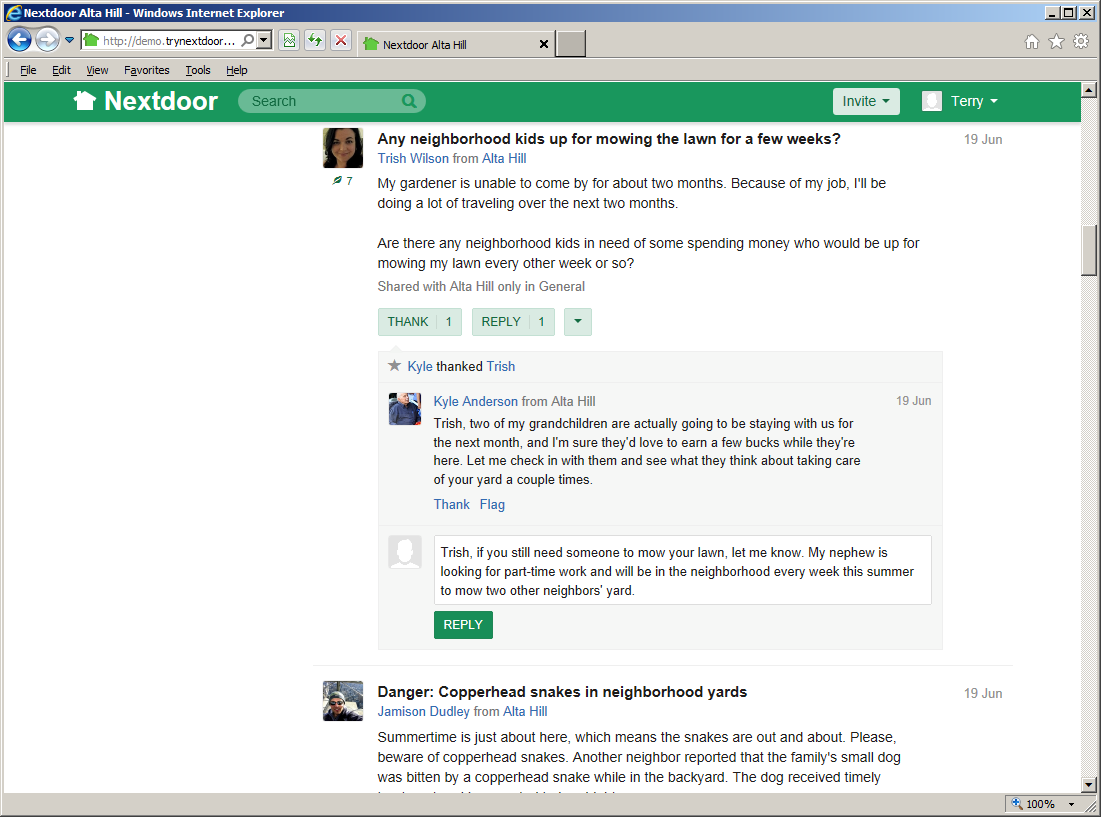
You can move messages to different categories to help neighbors find information more easily. For example, if a neighbor posts a message about a lost pet in the “General” category, you can move the message to the “Lost & Found” category.
To change a message's category:
Click the down-arrow symbol below the message.
On the menu that drops down, click Change category. A “Choose category for this post” form will come into view.
Click the best category for the message:
Classifieds: Click this box if the message is about an item that a neighbor wants to sell or buy.
Crime & Safety: Click this box if the message is about a crime or safety subject.
Free items: Click this box if the message is about an item that a neighbor wants to give away for free.
General: Click this box if the message does not fit into some other category.
Lost & Found: Click this box if the message is about a lost or found pet or item.
Recommendations: Click this box if this message is about a company or service a neighbor used.
If you click Recommendations, you can scroll down the list and check one or more items to give more information about the company or service.
The primary categories for recommendations include Automotive, Classes and lessons, Family and parenting, Food and entertainment, Home and garden, Medical and dental, Other services and businesses, Personal care, Pet services, Professional services, and Wellness. Each of these categories includes many sub-categories. You can check one or more sub-categories.
For example, on a message about a veterinarian that also does dog grooming and supplies kennel services:
you could scroll down to the Pet services category, then
you could check the Dog grooming, Kennel, and Veterinarian sub-categories.
To save your changes, click the green button.
Note
To cancel your changes, click the pale green button.
If you see a public message that contains bad language, advertising, or other inappropriate information, you can “flag” the message. This tells the lead user(s) for your neighborhood that the message must be reviewed and possibly deleted.
To flag a message:
Click the down-arrow symbol below the message.
On the menu that drops down, click .
Note
If there is no down-arrow symbol below the message, click the word Flag at the bottom of the message.
A “Flag this post for review” form will come into view.
Click a reason:
Inappropriate
Abusive
Commercial
Posted in error
To flag the message, click the green button.
Note
To not flag the message, click the pale green button.
If you click the down-arrow symbol below the message again, you will see that the word has changed to .
To post a new public message:
Click in the Post a message, event or urgent alert to neighbors box near the top of the home page. A MESSAGE form will come into view:
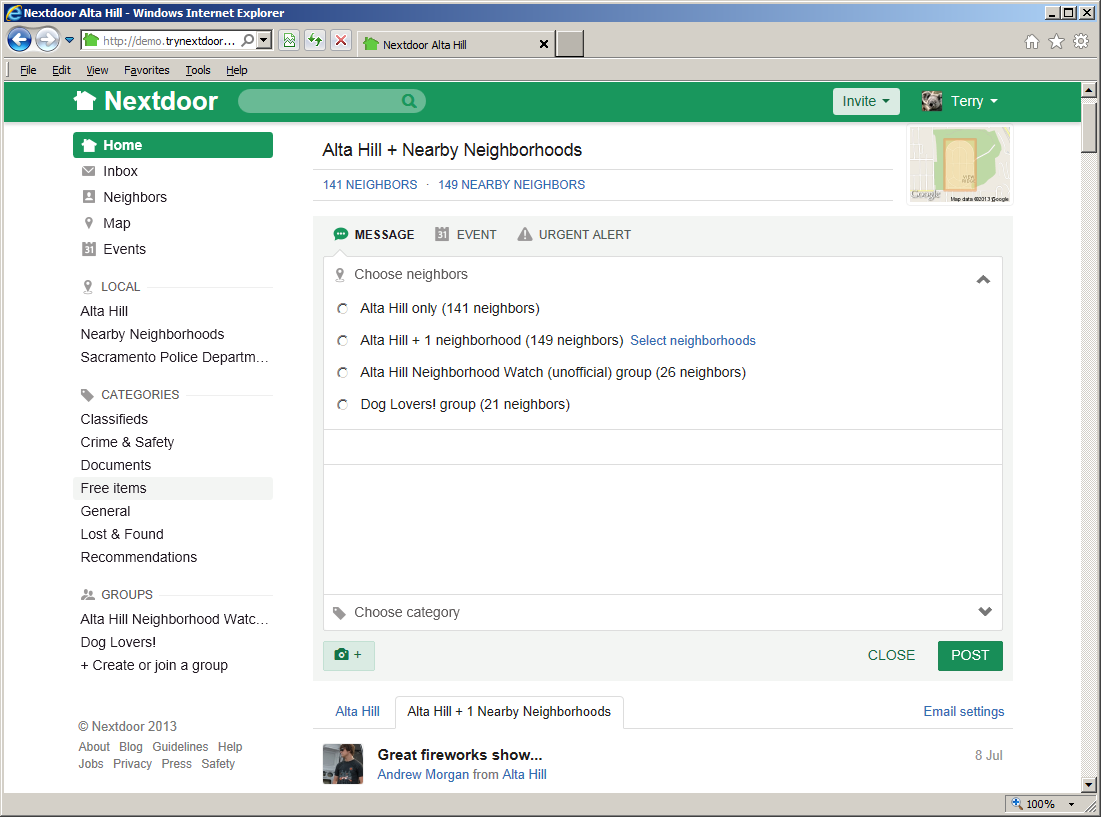
Use the Choose Neighbors section to tell Nextdoor who can see your message:
your neighborhood's nameonly: Click this if you want only your neighborhood's residents to see your message.your neighborhood's name+ # neighborhoods: Click this if you want Nearby Neighborhood residents to see your message.Note
If no Nearby Neighborhoods are turned on, you will not see this.
If you want only residents in some Nearby Neighborhoods to see your message, click the Select neighborhoods link. A list of Nearby Neighborhoods that are turned on will come into view. You will see a small box to the left of each Nearby Neighborhood's name. If you do not want residents in a specified Nearby Neighborhood to see your message, click the box to the left of that neighborhood's name. Then click the green button.
the names of your groups: If you are a member of one or more groups, you will see the groups' names on the list. Click a group name if you want only members of that group to see your message.
Click in the Add subject box. Type a short description of your message.
Click in the Write message box. Type your message.
Click in the Choose category box. A list of categories will come into view: Classifieds, Crime & Safety, Free items, Lost & Found, Recommendations, and General. Click the category that best agrees with your message.
If you click Recommendations, you will see a “Please select a category for your recommendation” form come into view:
Click in the “Select or search for a category (e.g., dry cleaner)” box.
Type a category name for the recommendation (such as
daycareorplumber). As you type, a list of categories will drop down. (For example, if you typecare, you will see categories that containcare, such as “Daycare” and “Eldercare,” on the list that drops down.)When you see the name of the appropriate category, click it.
Click the green button.
To add a photo to your message:
Click the “camera” button below the box. A dialog box from your computer will come into view.
Use the dialog box to find the directory or folder on your computer that contains the photo file.
When you find the file, select it.
The home page will come back into view.
To post your message, click the green button.
Note
To cancel the message, click the button.
If one or more Nearby Neighborhoods are included, a “Confirm your post to
#neighbors form” will come into view. The form shows the message,Your post will be seen by # neighbors inyour neighborhood's name+ # nearby neighborhoods. Please note these guidelines when posting to nearby neighborhoods: Content should be relevant and useful for all neighborhoods. Self-promotional messages and advertising are not permitted. Your name and photo will be visible to your nearby neighbors. If you wish to reduce the number of neighborhoods who will receive this post, please click REVISE below.Note
Unless you turn this message off, you will see it each time you share a message with Nearby Neighborhoods. To turn the message off, click the Don't show this message again box before you click the button.
If you want to make changes to your message, click the pale green button. You can then change the message, and click the button again.
If you want to share the message with the Nearby Neighborhood(s), click the green button.
You can attach files (such as photos) to all new messages that you post. But you can add files that are more important than others to the “Documents” category. Files in the “Documents” category are easy to find and refer to.
Note
Only members of your own neighborhood can see messages and files in the “Documents” category.
Files can be in different formats, for example:
Picture or photo files can have names that end with
.GIF,.JPG,.JPEG, or.PNG.Portable Document Format files have names that end with
.PDF. You can open PDF files with software such as Adobe Reader.Microsoft Word format files have names that end with
.DOCor.DOCX. You can open these files with Microsoft Word.Microsoft Excel format files have names that end with
.XLSor.XLSX. You can open these files with Microsoft Excel.
To add a file to the “Documents” category:
On the home page, click the Documents link in the “CATEGORIES” section at the left side of the page. A “Documents” page will come into view:
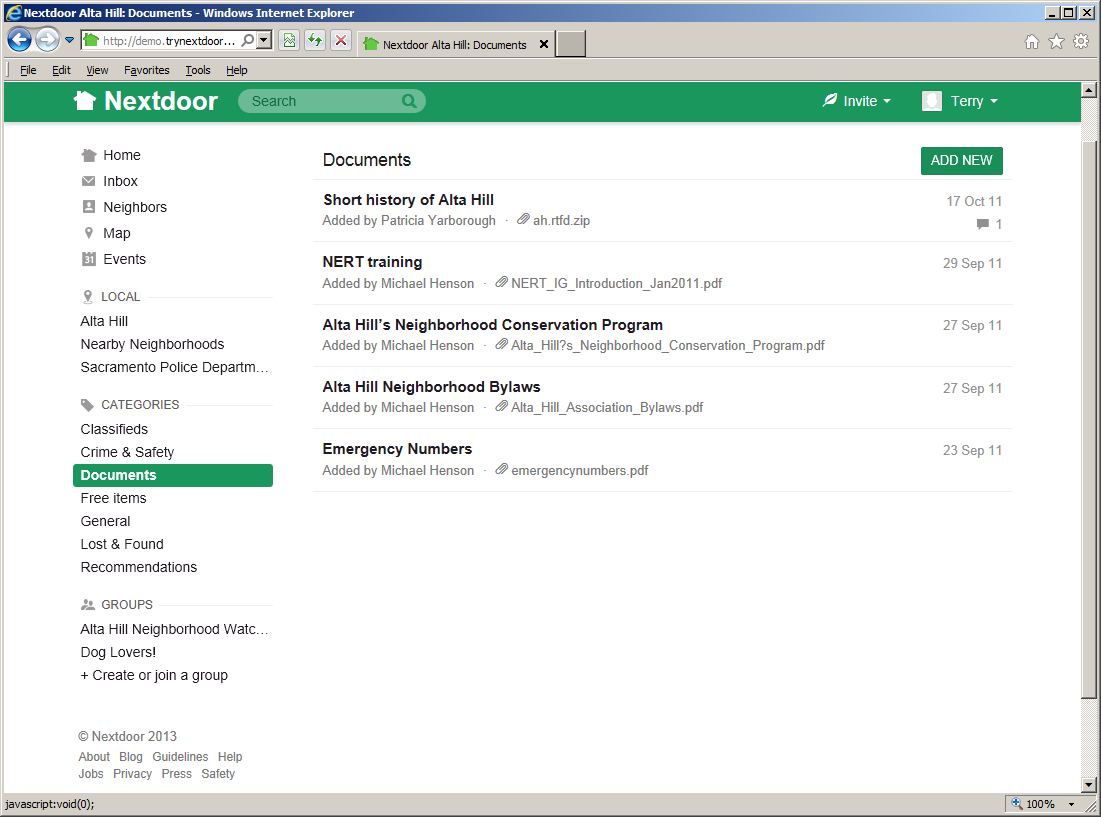
Click the green button near the top right corner of the page.
Click in the Add subject box. Type a short description of the document.
Click in the Describe the document you wish to share box. Type a message about the document.
To attach the document to your message:
Click the “camera” button below the Describe the document you wish to share box. A dialog box from your computer will come into view.
Use the dialog box to find the directory or folder on your computer that contains the document file.
When you find the file, select it.
The “Documents” page will come back into view.
To post your message and the document, click the green button.
Note
To cancel the message, click the button.
To see a document:
On the home page, click the Documents link in the “CATEGORIES” section at the left side of the page. A “Documents” page will come into view.
Click the subject (description) of the document you want to see. (For example, to see the document about NERT training, click NERT Training.) A page with the message will come into view. At the bottom of the message, you will see a “paperclip” icon with a link to its right.
Click the link to the right of the “paperclip” icon to open the document. If you have the necessary software installed on your computer, the document will come into view.
To go back to the Nextdoor website, click the “back” button in your web browser.
When you post a public message, you can make changes to that message for up to 30 days. You can also delete messages you posted.
To change a public message that you posted:
Find the message that you want to change.
Click the down-arrow symbol below the message.
On the menu that drops down, click .
Note
If there is no down-arrow symbol below the message, click the word Edit at the bottom of the message.
Note
If the message is more than 30 days old, Edit will not be on the menu or at the bottom of the message. You cannot change messages that are more than 30 days old.
Type the changes to your message.
Click the green button.
Note
To not change the message, click the pale green button.
The phrase Edited just now will come into view below the message to show that you changed it.
Note
Nextdoor members can select to receive public messages by email. If you change a message more than two minutes after you post it, the Nextdoor website will show your changes. But some members will possibly receive a copy of the first version of the message (without your changes) by email.
To delete a public message that you posted:
Find the message that you want to delete.
Click the down-arrow symbol below the message.
On the menu that drops down, click .
Note
If there is no down-arrow symbol below the message, click the word Delete at the bottom of the message.
A “Delete this post?” (or “Delete this reply?”) form will come into view.
To delete the message, click the green button.
Note
To not delete the message, click the pale green button.
Note
If you delete a message less than two minutes after you post it, the message will not be sent to other Nextdoor members.
If you delete a message more than two minutes after you post it, it will be removed from the Nextdoor website. But some members will possibly receive a copy of the message by email.