Pictures in this manual are from the “Nextdoor Alta Hill” website at http://demo.trynextdoor.com/vip. Nextdoor Alta Hill is an example website that Nextdoor made to use for tests and demonstrations.
This manual identifies information that is good to know or that will possibly help you do a task as a “note.”
Note
Here is an example of a note.
This manual identifies information that can help you prevent a problem or an error as a “caution.”
Caution
Here is an example of a caution.
When this manual tells you to:
“Click” an object (for example: “Click the button”):
Move the mouse cursor on top of the object.
Press the left mouse button one time then release the button.
“Right-click” an object (for example: “Right-click the link”):
Move the mouse cursor on top of the object.
Press the right mouse button one time then release the button.
“Click and drag” an object (for example: “Click and drag the map marker to your street address”):
Move the mouse cursor on top of the object.
Press the left mouse button and hold the button down.
Move the mouse cursor to the new location.
Release the left mouse button.
“Scroll up” or “scroll down” a page (for example: “Scroll down the page to see more messages”):
If your mouse has a small wheel between the left and right mouse buttons, you can use the wheel to scroll up and down. Pull the wheel towards you to scroll down the page. Push the wheel away from you to scroll up the page.
If a page contains more information than will fit on one screen, you will see a “scroll bar” at the right side of the page:
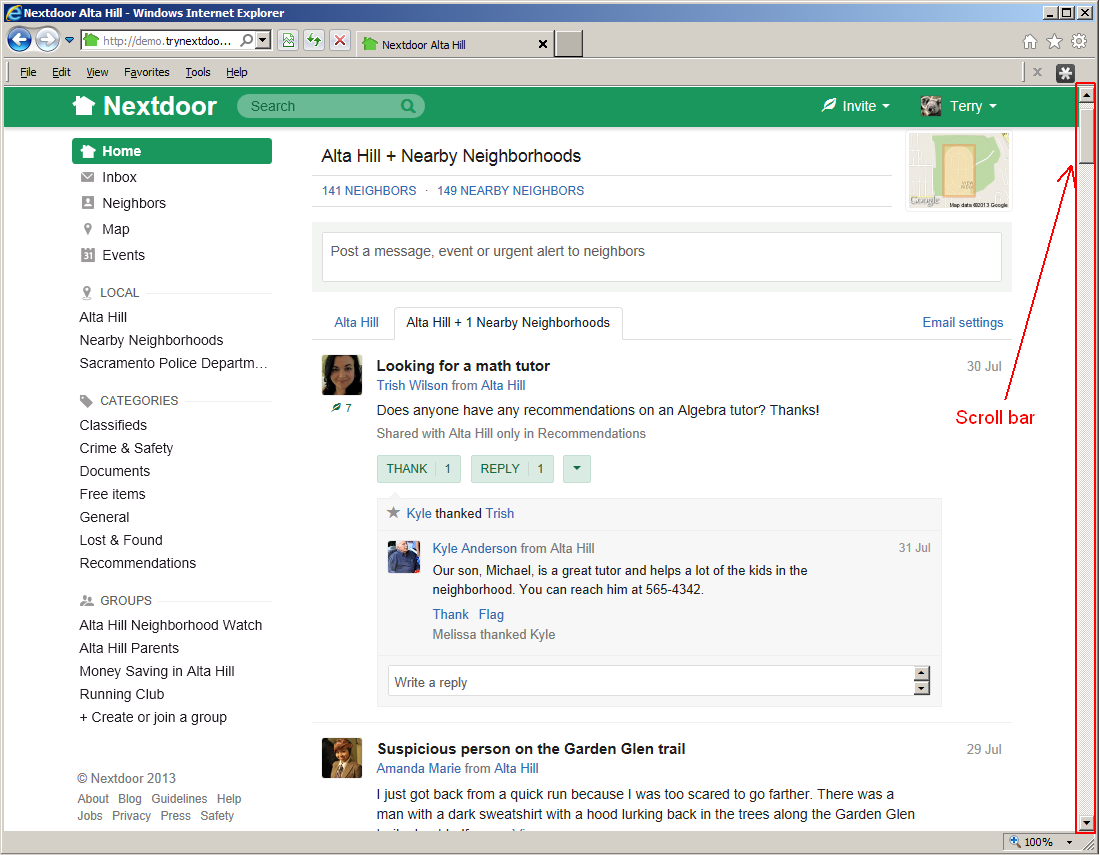
To scroll the page up one line at a time, click the up-arrow symbol at the top of the scroll bar. To scroll down in the page one line at a time, click the down-arrow symbol at the bottom of the scroll bar.
To scroll the page up one window at a time, click above the gray box on the scroll bar. To scroll down in the page one window at a time, click below the gray box on the scroll bar.
You can also click and drag the gray box on the scroll bar to move quickly to a different position on the page.
To do some tasks, you will click buttons, links, or menus on the Nextdoor website:
Buttons on the website will be shown in a special font. For example: , , .
Links on the website will be shown in a special font. For example: Inbox, Neighbors, Map.
Menu names will be shown in a special font. For example: , .
When you click a menu, a list of items will come into view. Click the item that you want to use.
For example, you will see a menu with your first name (such as ) at the top right corner of each Nextdoor page. When you click this menu, a list of items will come into view. You can click these items to set up your profile and your Nextdoor settings. For help with your profile and settings, see Chapter 7, How to Change Your Nextdoor Settings, Section 7.1, “Your Profile”.
This manual uses special symbols and standards to show you how to enter information:
When you must press a key on the keyboard, this manual will show the name of the key between two angled brackets.
For example: <A>, <B>, <C>, <Enter>, <Del>, <Backspace>, <Ctrl>.
Note
The names of the keys on your keyboard will possibly be different from the names shown in this manual.
For example: An alternative name for the <Del> key is <Delete>.
If you must press more than one key to do a task, this manual will show a special symbol between the keys.
For example, if this manual tells you to “Press <Ctrl>+<C>”, you will:
Press and hold down the <Ctrl> key.
Press and release the <C> key.
Release the <Ctrl> key.
If you must type some information, this manual will show the information in a special font.
For example: “Type
74104in the ZIP box.”