Your profile is the information that neighbors can see about you. Your profile must contain your real first and last name, and the name of your street. You can add other information to your profile if you want.
To change your profile:
Click your name near the top right corner of the home page.
On the menu that drops down, click . Your profile page will come into view.
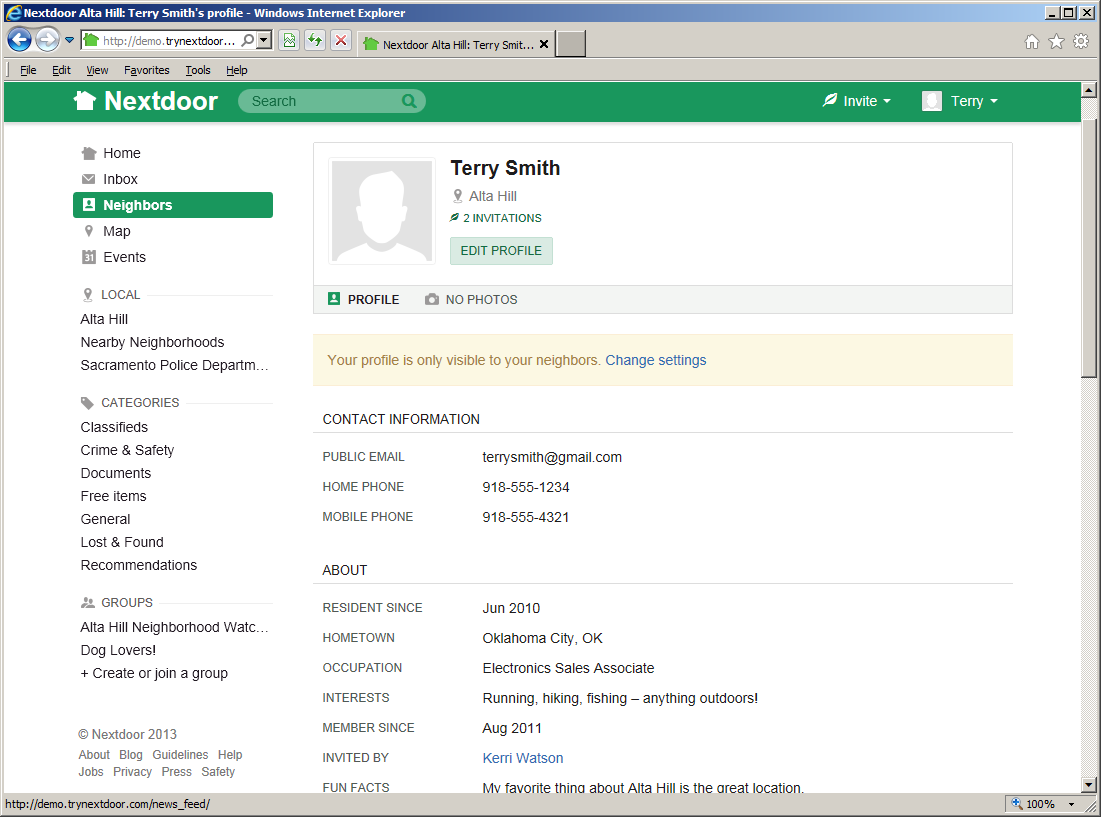
Click the pale green button below your name. An “Edit profile” page will come into view:
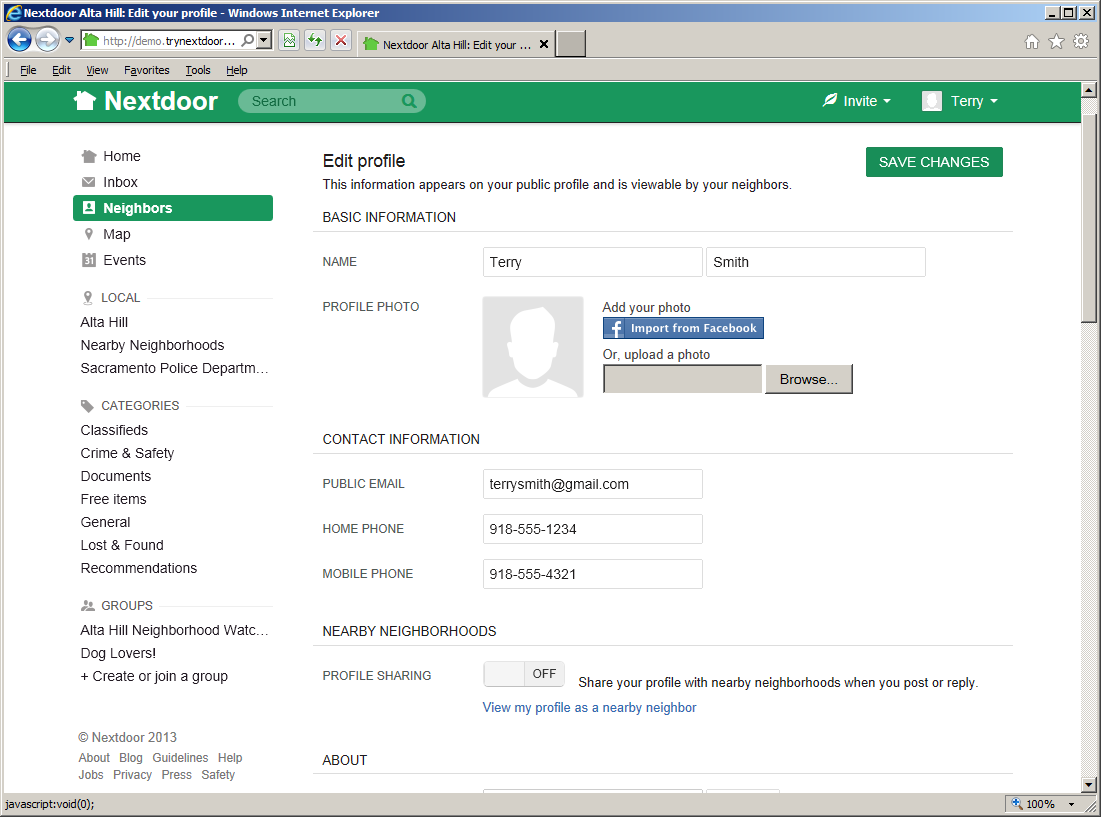
Complete the boxes on the page:
Note
You must use your real first and last name. The name of your street will be shown on your profile. All other information is optional.
BASIC INFORMATION:
NAME: If your name is not correct, click in the first box and type your name. Click in the second box and type your last name.
PROFILE PHOTO: If you have a file that contains your photo on your computer, you can add the photo to your profile.
To add your photo:
Click the button. A dialog box from your computer will come into view:
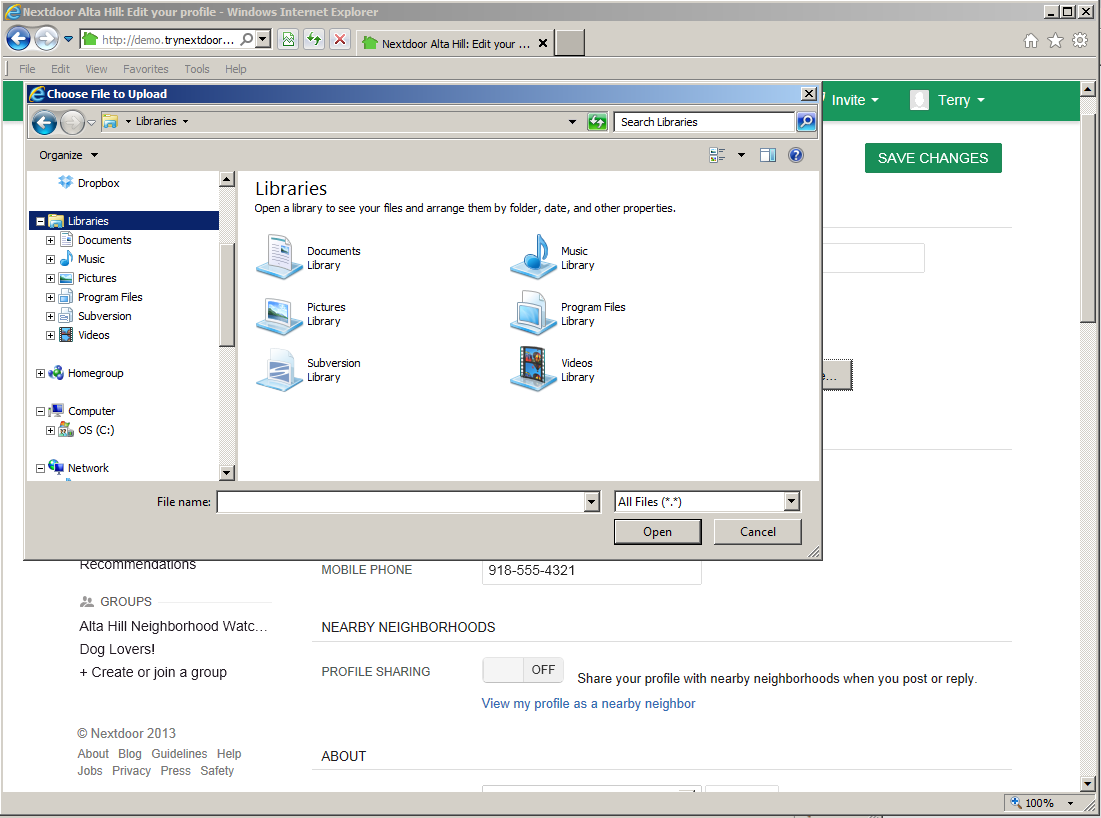
Use the dialog box to find the directory or folder on your computer that contains the photo file.
When you find the file, select it.
Your profile page will come back into view. You will see your photo on your profile after you save your changes.
CONTACT INFORMATION:
PUBLIC EMAIL: It is not necessary for your neighbors to know your email address to send you private messages through Nextdoor. But if you want them to know your email address, click in the PUBLIC EMAIL box. Then type your email address.
HOME PHONE: If you want your neighbors to know your home phone number, click in the HOME PHONE box. Then type your home phone number.
MOBILE PHONE: If you want your neighbors to know your mobile (cell phone) number, click in the MOBILE PHONE box. Then type your cell phone number.
MOBILE APPS: If you use the Nextdoor for Android or Nextdoor for iPhone app, Nextdoor will show a message about that. For help with the Nextdoor for Android app, see Chapter 17, Nextdoor for Android. For help with the Nextdoor for iPhone app, see Chapter 16, Nextdoor for iPhone.
NEARBY NEIGHBORHOODS: Nearby Neighborhoods are neighborhoods near your neighborhood that also use Nextdoor. When you post a public message on Nextdoor, you can post the message to your neighborhood only, or to your neighborhood and Nearby Neighborhoods. After you post a message to Nearby Neighborhoods, residents in those neighborhoods can see some information on your profile. But you control how much information they can see.
Note
If you do not post public messages to Nearby Neighborhoods, residents in those neighborhoods will not see your information at all.
PROFILE SHARING: If PROFILE SHARING is set to
OFF, residents in Nearby Neighborhoods will see only your name, your profile photo (if you have one), and your neighborhood's name. If PROFILE SHARING is set toON, residents in Nearby Neighborhoods will see your full profile.To see how your profile looks to residents in Nearby Neighborhoods, click the View my profile as a nearby neighbor link. A new window will open in your web browser to show your profile.
To change how your profile looks to residents in Nearby Neighborhoods, click and drag the PROFILE SHARING button. For example, if PROFILE SHARING is set to
ON, Nearby Neighborhoods will see your full profile. But if you want Nearby Neighborhoods to see only your name, photo, and neighborhood name, click and drag the button to theOFFposition.
ABOUT: All the information in this section is optional. If you want your neighbors to know more about you, you can type information in the RESIDENT SINCE, HOMETOWN, OCCUPATION, BIOGRAPHY, INTERESTS, and/or FUN FACTS boxes.
FAMILY: All the information in this section is optional.
SPOUSE/PARTNER: If you want your neighbors to know the name of your spouse or partner, click in the SPOUSE/PARTNER box. Then type the name of your spouse or partner.
If your spouse/partner is not a member of Nextdoor, you can click in the Email address box. Then type their email address to invite them to join Nextdoor.
Note
Nextdoor recommends that each person in a home has a Nextdoor account. This helps neighbors send messages to the person they want to speak to.
CHILDREN: If you want your neighbors to know the name of your child(ren), click in one of the Name boxes. Then type the name of your child.
If you want your neighbors to know your child's age:
Click the down-button symbol at the right side of the box to the right of the child's name.
On the list that drops down, click the month in which the child was born.
Click in the YYYY box. Type the year the child was born (for example,
1996).
Do this step again for each of your children.
PETS: If you want your neighbors to know about your pet(s):
Click in one of the Name boxes. Type the name of your pet.
Click the down-button symbol at the right side of the box to the right of the pet's name.
On the list that drops down, click Dog, Cat, Bird, Fish, or Other.
Click in the Breed box. Type your pet's breed.
HOME: You can tell Nextdoor to show your neighbors your full address, or only the name of your street.
SHOW MY ADDRESS AS: Click your full address or the name of your street.
After you complete the changes, click the button.
Note
There are two buttons: one near the top right corner of the page, and one at the bottom left corner of the page.