Your Nextdoor settings include:
if and when Nextdoor sends you emails
the mobile (cell phone) number that Nextdoor uses to send you urgent messages (if you turn this setting on)
your settings for Nearby Neighborhoods:
which neighborhoods you want to see messages from
if and when Nextdoor sends you messages about Nearby Neighborhoods
how much information on your profile residents in Nearby Neighbhoods can see
Note
If you do not post public messages to Nearby Neighborhoods, residents in those neighborhoods will not see your information at all.
the email address that Nextdoor uses to send you messages
your Nextdoor password
your street address
To change your Nextdoor settings:
Click your name near the top right corner of the home page.
On the menu that drops down, click . The “Settings” page will come into view:
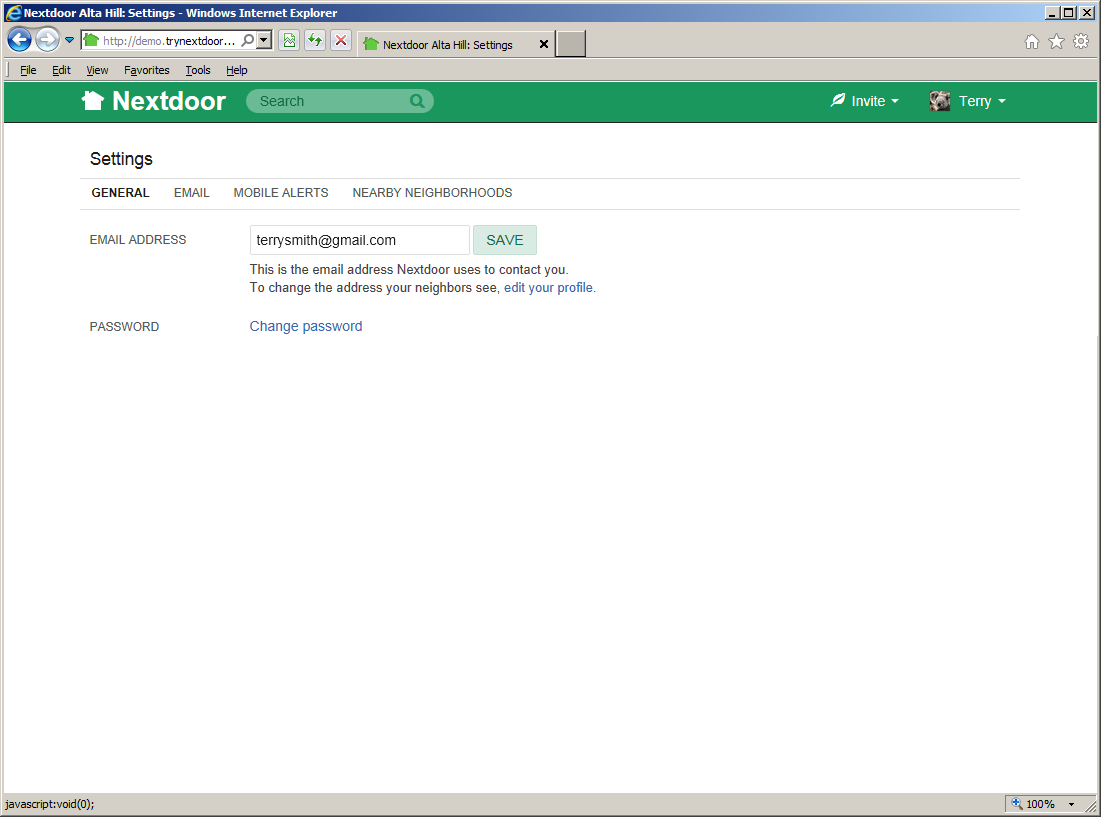
The EMAIL settings page is selected automatically. (This page shows the email address that Nextdoor uses to send you messages, and lets you control when you want Nextdoor to send you emails. For help with email settings, see Section 7.2.1, “Email Settings”.)
If you want to change other settings, click:
MOBILE ALERTS to tell Nextdoor if you want to receive urgent messages on your mobile (cell) phone. If you do want to receive urgent messages, you use the Mobile Alerts page to tell Nextdoor your cell phone number. For help with Mobile Alerts settings, see Section 7.2.2, “Mobile Alerts Settings”.
NEARBY NEIGBHORHOODS to control:
the Nearby Neighborhoods from which you see messages
when you get email from Nearby Neighborhoods
how much of your profile information residents in Nearby Neighbhoods can see
For help with Nearby Neighborhoods settings, see Section 7.2.3, “Nearby Neighborhoods Settings”.
ACCOUNT to change your email address, Nextdoor password, or street address. The page also includes a link to deactivate your Nextdoor account.
The EMAIL settings page shows the email address that Nextdoor uses to send you messages. You can also use this page to tell Nextdoor if and when to send you emails:
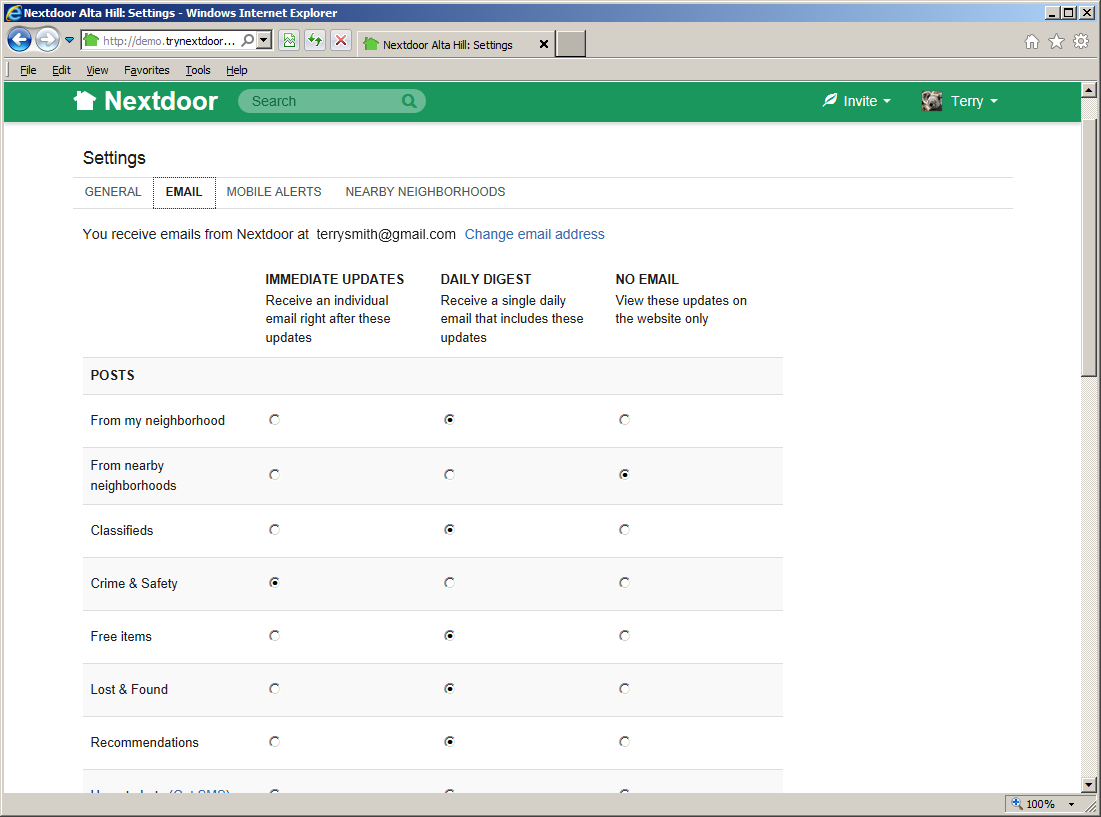
Look for You receive emails from Nextdoor at your email address near the top of the EMAIL settings page to see the email address that Nextdoor uses to send you messages.
To tell Nextdoor to use a different email address:
Click the Change email address link. The ACCOUNT settings page will come into view.
See Section 7.2.4, “Account Settings” for help to change your email address.
The EMAIL settings page also lets you control if and when you receive emails from Nextdoor as new information is added to the website.
For most of the categories below, you can select:
IMMEDIATE UPDATES: Nextdoor will send you an email immediately for each new message in this category.
DAILY DIGEST: Nextdoor will send you one email a day that includes all new messages in this category.
NO EMAIL: Nextdoor will not send you emails about new messages in this category. To view information in this category, you must view the Nextdoor website.
For some categories, you can only turn emails on or off.
The categories are:
POSTS:
From my neighbohood: If you want Nextdoor to send you an email when a resident of your neighborhood posts a public message, click IMMEDIATE UPDATES or DAILY DIGEST. If you do not want Nextdoor to send you emails for this category, select NO EMAIL.
From nearby neighborhoods: If you want Nextdoor to send you an email when a Nearby Neighborhood resident posts a public message, click IMMEDIATE UPDATES or DAILY DIGEST. If you do not want Nextdoor to send you emails for this category, select NO EMAIL.
Classifieds: If you want Nextdoor to send you an email when a neighbor posts a new message in the Classifieds category, click IMMEDIATE UPDATES or DAILY DIGEST. If you do not want Nextdoor to send you emails for this category, select NO EMAIL.
Crime & Safety: If you want Nextdoor to send you an email when a neighbor posts a new message in the Crime & Safety category, click IMMEDIATE UPDATES or DAILY DIGEST. If you do not want Nextdoor to send you emails for this category, select NO EMAIL.
Free items: If you want Nextdoor to send you an email when a neighbor posts a new message in the Free Items category, click IMMEDIATE UPDATES or DAILY DIGEST. If you do not want Nextdoor to send you emails for this category, select NO EMAIL.
Lost & Found: If you want Nextdoor to send you an email when a neighbor posts a new message in the Lost & Found category, click IMMEDIATE UPDATES or DAILY DIGEST. If you do not want Nextdoor to send you emails for this category, select NO EMAIL.
Recommendations: If you want Nextdoor to send you an email when when a neighbor posts a new message in the Recommendations category, click IMMEDIATE UPDATES or DAILY DIGEST. If you do not want Nextdoor to send you emails for this category, select NO EMAIL.
Urgent Alerts: If you want Nextdoor to send you an email when a neighbor posts an Urgent Alert, click IMMEDIATE UPDATES or DAILY DIGEST. If you do not want Nextdoor to send you emails for this category, select NO EMAIL.
Note
If you want Nextdoor to send urgent alert messages to your cell phone, click the Get SMS link. For help with alerts, see Section 7.2.2, “Mobile Alerts Settings”.
Welcome posts: If you want Nextdoor to send you an email when a neighbor welcomes you, click the Send me notifications when someone welcomes me box.
MEMBERS:
: If you want Nextdoor to send you an email when neighbors join Nextdoor, click the Send me twice-weekly announcements box.
Member changes: If you want Nextdoor to send you an email when new neighbors join or when neighbors deactivate their Nextdoor accounts, click the Notify me when new unverified neighbors join or existing neighbors deactivate their account box.
REPLIES/THANKS:
New replies from my neighborhood: If you want Nextdoor to send you an email when a Nextdoor member in your neighborhood replies to a public message, click IMMEDIATE UPDATES or DAILY DIGEST. If you do not want Nextdoor to send you emails for this category, select NO EMAIL.
New replies from nearby neighborhoods: If you want Nextdoor to send you an email when a Nearby Neighborhood resident replies to a public message, click IMMEDIATE UPDATES or DAILY DIGEST. If you do not want Nextdoor to send you emails for this category, select NO EMAIL.
Replies to my activity: If you want Nextdoor to send you an email when a neighbor replies to a message you posted (or to a message you clicked the button on), click the Email me replies to my posts or on a post I replied to or thanked box.
Thanks to my activity: If you want Nextdoor to send you an email when a neighbor clicks the button on a message you posted, click the Email me "Thanks" to my posts box.
EVENTS:
Invitations to events: If you want Nextdoor to send you an email when a neighbor posts an event, click IMMEDIATE UPDATES or DAILY DIGEST. If you do not want Nextdoor to send you emails for this category, select NO EMAIL.
RSVPs to my event: If you want Nextdoor to send you an email when a neighbor accepts the invitation to your event, click IMMEDIATE UPDATES or DAILY DIGEST. If you do not want Nextdoor to send you emails for this category, select NO EMAIL.
CITY UPDATES: You will see this section if your city is a member of the Nextdoor City Program (a link to information from your city officials, police department, and/or fire department):
Posts from city staff: If you want Nextdoor to send you an email when a city staff member posts a message, click IMMEDIATE UPDATES or DAILY DIGEST. If you do not want Nextdoor to send you emails for this category, select NO EMAIL.
Replies to city posts: If you want Nextdoor to send you an email when a city staff member replies to a city post you replied to or thanked, click Email me replies to city posts I've replied or thanked.
Urgent alerts from city staff: If you want Nextdoor to send you an email when a city staff member posts an urgent alert, click IMMEDIATE UPDATES or DAILY DIGEST. If you do not want Nextdoor to send you emails for this category, select NO EMAIL.
OTHER:
Nextdoor updates: If you want Nextdoor to send you general information about Nextdoor, click the Send me occasional updates box.
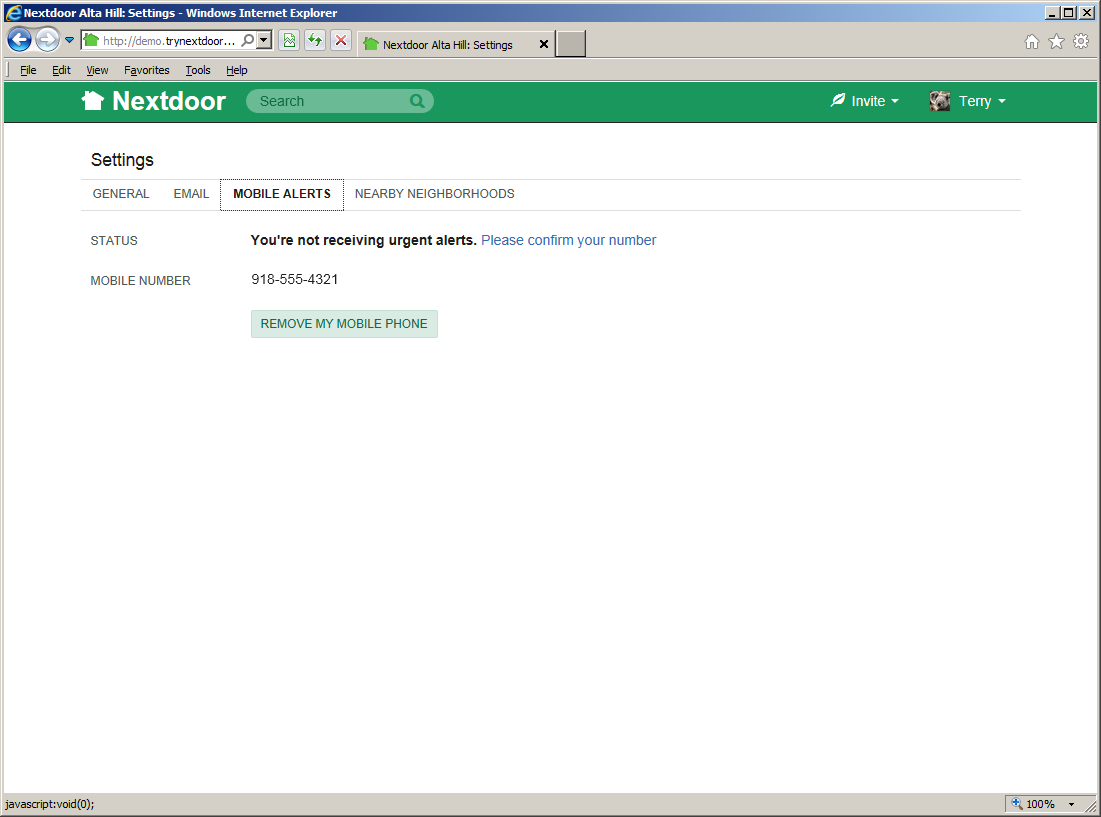
You can use the MOBILE ALERTS settings page to tell Nextdoor if you want to receive urgent alerts on your mobile (cell) phone:
You and your neighbors can use urgent alerts to tell each other immediately about important crime and safety issues, such as:
suspicious activity
missing children
fires, floods, or other disasters
local evacuations
Nextdoor can send urgent alerts to you by email. But you will usually receive alerts faster if you tell Nextdoor to send them to your cell phone.
The MOBILE ALERTS settings page shows if you receive alerts on your cell phone:
If Nextdoor does not know your cell phone number, you will see the message
Add your mobile phone number to receive urgent alerts from your neighborhood via text message (SMS).If Nextdoor knows your cell phone number and you receive mobile alerts, you will see the message
You're receiving urgent alerts via text message (SMS)on the STATUS line.Note
If your city is a member of the Nextdoor City Program (a link to information from your city officials, police department, and/or fire department), you will see a Send me urgent alerts from city staff box. Check this box if you want to receive urgent text messages from city staff members.
You will see your cell phone number on the MOBILE NUMBER line.
If Nextdoor cannot be sure that your cell phone number is correct, you will see the message
You're not receiving urgent alerts. Please confirm your number.
If you want to receive mobile alerts:
Click the green button. An “Add mobile phone number” form will come into view.
Type your 10-digit mobile (cell phone) number in the MOBILE PHONE NUMBER box.
Note
Be sure to include the area code. It is not necessary to type
+1before your phone number.Click the down-arrow button at the right side of the Select carrier box. On the list that drops down, click the name of your cell phone carrier (Verizon, AT&T, Sprint, T-Mobile, etc.).
Nextdoor must send a text message to your phone to make sure you typed the correct number. Click the green button to tell Nextdoor to send this text message.
Note
If you do not want to receive mobile alerts, click the button.
The “Add mobile phone number” form will change. It will show a CONFIRMATION CODE box:
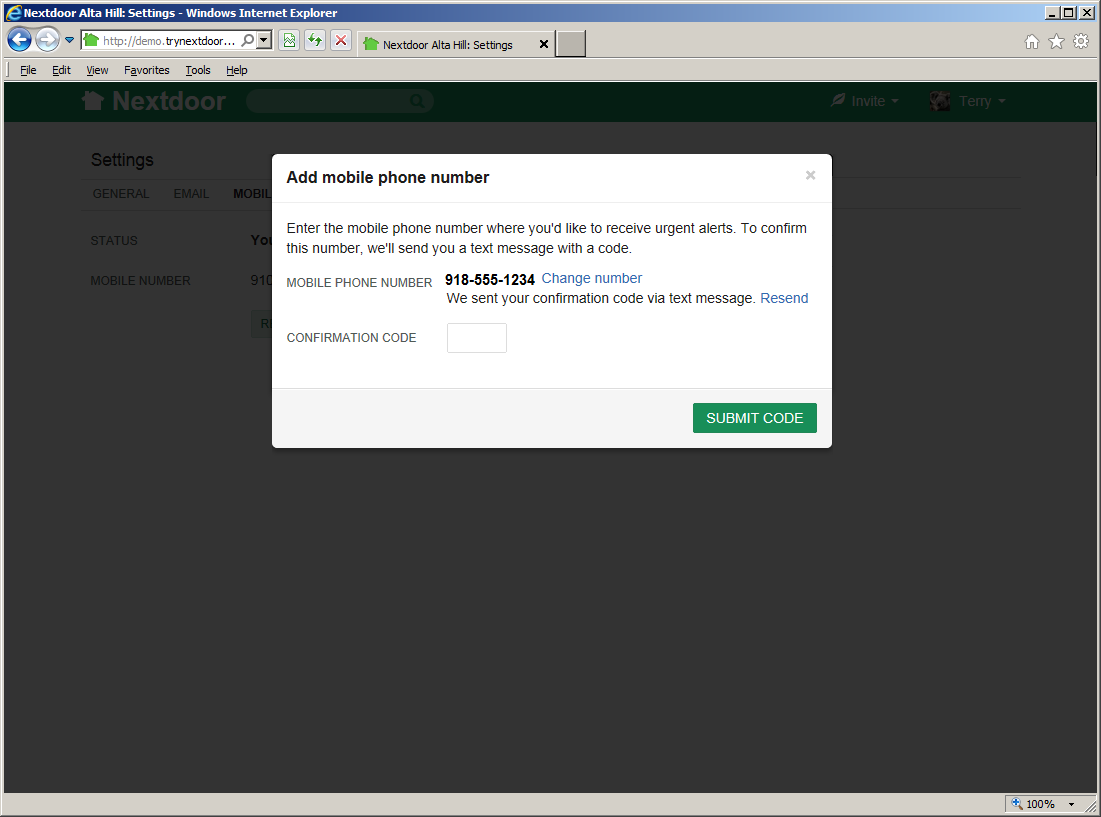
When you receive the message from Nextdoor on your cell phone, type the confirmation code from the message in the CONFIRMATION CODE box on the website.
Click the green button.
You will see the message
You're receiving urgent alerts via text message (SMS)on the STATUS line. You will see your cell phone number on the MOBILE NUMBER line.
If your cell phone number changes or you want to stop the mobile alerts, you can change your mobile alerts settings:
To tell Nextdoor your new cell phone number, click the Change link below your old cell phone number. Then use the procedure in Section 7.2.2.1, “How to Receive Mobile Alerts” to set up your new phone number.
To tell Nextdoor to not send alerts to your cell phone, click the button. The message
Add your mobile phone number to receive urgent alerts from your neighborhood via text message (SMS)will come into view.
Note
For more information about Nearby Neighborhoods, see Chapter 6, Nearby Neighborhoods.
You can use the NEARBY NEIGHBORHOODS settings page to:
tell Nextdoor which Nearby Neighborhoods you want to see messages from.
tell Nextdoor if and when to send you emails when Nearby Neighborhood residents post messages.
control how much of your profile information Nearby Neighborhood residents see if you share public messages with them or reply to a message shared with them
Note
If you do not share messages with Nearby Neighborhoods or reply to shared messages, residents in those neighborhoods will not see your information at all.
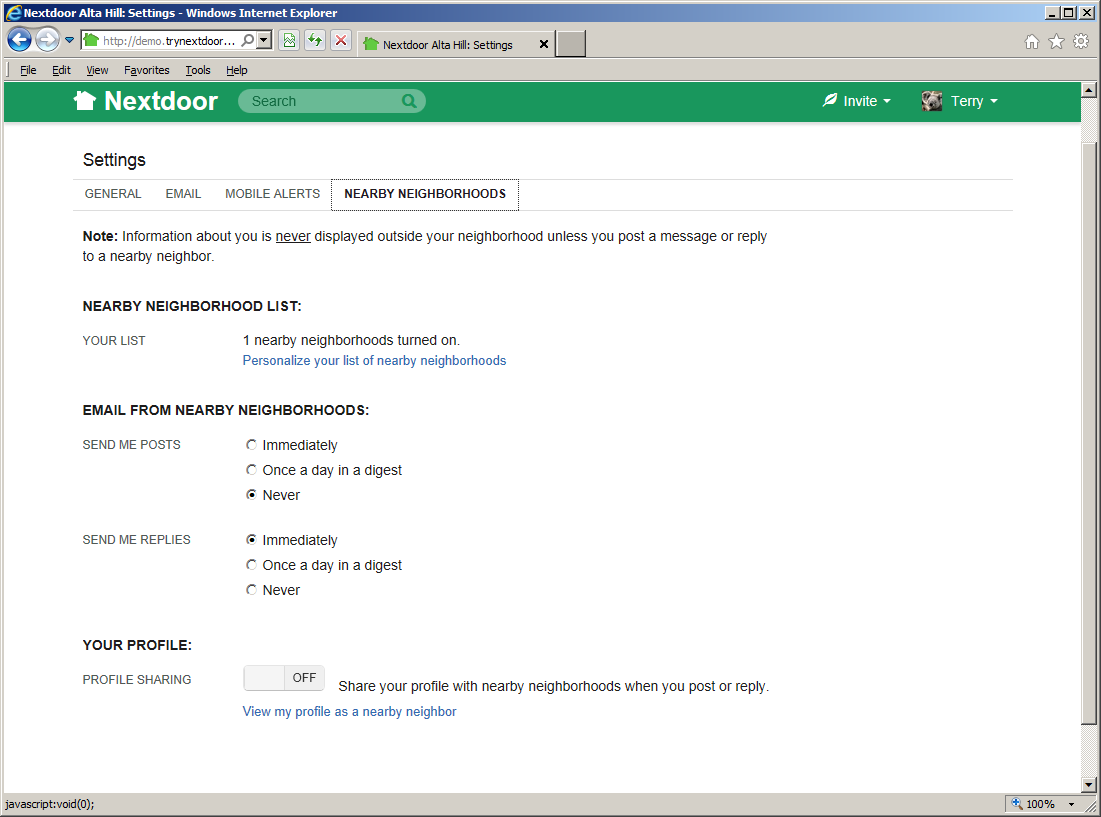
The NEARBY NEIGHBORHOOD LIST section shows how many Nearby Neighborhoods you have turned on (0 or more). You will only see messages from Nearby Neighborhoods that you turn on. If you post a public message on Nextdoor and share the message with Nearby Neighborhoods, it will only go to Nearby Neighborhoods that you turned on.
To change which Nearby Neighborhoods are turned on:
Click the Personalize your list of nearby neighborhoods link. A map of your neighborhood and its Nearby Neighborhoods will come into view. You will see a list of Nearby Neighborhoods at the right side of the map.
Use the ON/OFF button to the right of a Nearby Neighborhood's name to change the setting for that neighborhood. If a neighborhood's button is set to
OFF, you can click and drag the button to theONposition to turn on that neighborhood. If a neighborhood's button is set toON, you can click and drag the button to theOFFposition turn off that neighborhood.
After you view or change your Nearby Neighborhood settings, you can go back to the home page or go back to the “Settings” page.
The EMAIL FROM NEARBY NEIGHBORHOODS section let you tell Nextdoor if and when to send you emails if Nearby Neighborhood residents post messages:
If you want Nextdoor to send you an email when a Nearby Neighborhood resident posts a public message, click Immediately or Once a day in a digest.
Note
If you click Once a day in a digest, Nextdoor will send you one email a day that includes all new messages in this category.
If you do not want to receive emails when Nearby Neighborhood residents post messages, click Never.
If you want Nextdoor to send you an email when a Nearby Neighborhood resident replies to a public message, click Immediately or Once a day in a digest.
If you do not want to receive emails when Nearby Neighborhood residents reply to messages, click Never.
The YOUR PROFILE section lets you control how much of your profile information Nearby Neighborhood residents see if you post public messages.
Note
If you do not post public messages to Nearby Neighborhoods, residents in those neighborhoods will not see your information at all.
If PROFILE SHARING is set to
OFF, residents in Nearby Neighborhoods will see only your name, your profile photo (if you have one), and your neighborhood's name. If PROFILE SHARING is set toON, residents in Nearby Neighborhoods will see your full profile.To see how your profile looks to residents in Nearby Neighborhoods, click the View my profile as a nearby neighbor link. A new window will open in your web browser to show your profile.
To change how your profile looks to residents in Nearby Neighborhoods, click and drag the PROFILE SHARING button. For example, if PROFILE SHARING is set to
ON, Nearby Neighborhoods will see your full profile. But if you want Nearby Neighborhoods to see only your name, photo, and neighborhood name, click and drag the button to theOFFposition.
You can use the ACCOUNT settings page to:
change the email address that Nextdoor uses to send you messages,
change your password,
change your street address, or
deactivate your Nextdoor account.
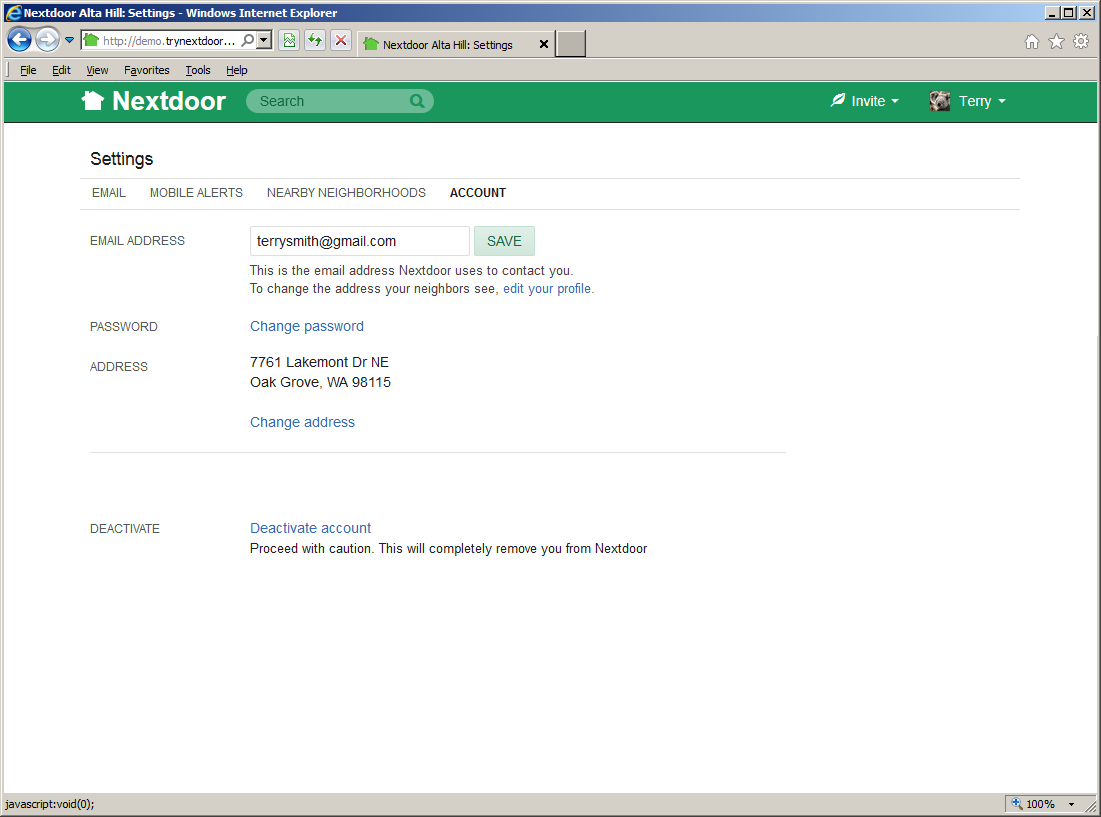
To tell Nextdoor that your email address has changed:
Type your new email address in the EMAIL ADDRESS box.
Click the button.
To change your Nextdoor password:
Click the link. A Change Password page will come into view.
Click in the Current password box. Type your password (the password you used to sign in to Nextdoor).
Click in the New password box. Type your new password.
Click in the Confirm new password box. Type your new password again.
Note
Nextdoor does not show the password you typed. Nexdoor tells you to type your password two times to be sure that you know your new password.
If the message
The two password fields didn't matchcomes into view, start again at the second step.Click the button.
Note
If you do not want to change your password, click the button.
The Nextdoor “home” page will come into view.
To tell Nextdoor that your street address has changed:
Caution
If you change your street address, you must confirm your new address.
If the new address is in the boundary of a different Nextdoor neighborhood:
You can no longer use your old neighborhood's Nextdoor site.
The members of your old neighborhood's Nextdoor site:
will continue to see the messages you posted there.
will not see your new address.
will see only your name (not your full profile) if they click your name or picture on a message you posted.
Until you confirm your new address, you cannot use the Nextdoor website for your new neighborhood.
Click the Change address link. A Settings: Change Address page will come into view.
In the “NEW ADDRESS” section, type your new street address, apartment/suite (if applicable), city, state, and ZIP code.
Click the green button.
Note
If you do not want to change your street address, click the button.
Confirm your new address. For help with this, see Chapter 2, How to Join Nextdoor, Section 2.2.3, “Confirm Your Address”.
To deactivate (remove) your Nextdoor account:
Caution
If you deactivate your account, you can no longer use Nextdoor.
The members of your neighborhood's Nextdoor site:
will continue to see the messages you posted there.
will see only your name (not your full profile) if they click your name or picture on a message you posted.
Click the Deactivate account link. A page will come into view.
Click the down-button symbol at the right side of the box.
On the list that drops down, click a reason, such as
Moved or moving,Didn't find it useful,Privacy concerns,Received too much email,Duplicate account,Too many negative posts,Not enough neighbors, orOther reasons.Nextdoor will possibly show some some information that can help you. For example, if you click
Moved or moving, Nextdoor will show the message,If you are moving, deactivation is actually the wrong way to remove yourself from your neighborhood. Change your address instead.If this information applies to you, you can click the link in the message to do something other than deactivate your account. For example, the message that Nextdoor shows when you click
Moved or movingincludes a link to Change your address.
If you want to give Nextdoor more information about your decision to deactivate your account or how to make Nextdoor better, type that in the How can we improve Nextdoor? box.
If you want the lead member(s) of your Nextdoor site to see the information you typed in the How can we improve Nextdoor? box, click the Share this feedback with your neighborhood Lead(s).
Click the green button.
Note
If you want to join Nextdoor again after you deactivate your account, you can reactivate your account:
Sign in to Nextdoor with the same email address and password that you used before.
Click the button.