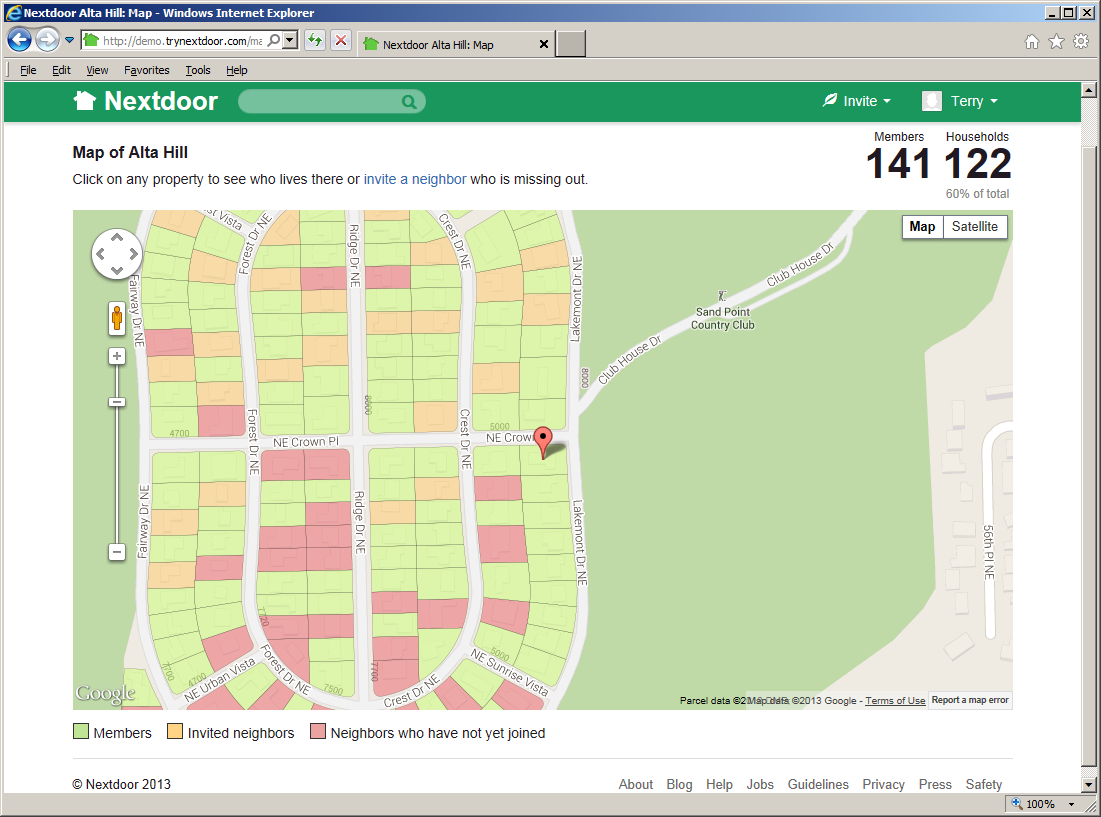
To see a map of your neighborhood, click the Map link near the top left corner of the home page:
Note
Pictures in this manual are from the “Nextdoor Alta Hill” website. Nextdoor Alta Hill is an example website that Nextdoor made to use for tests and demonstrations. The information on Nextdoor Alta Hill is not real.
You will see your house at the middle of the map.
The map uses different colors to show which neighbors are Nextdoor members:
Addresses shown in green are where Nextdoor members live.
Addresses shown in red have no Nextdoor members.
Addresses shown in pale orange have no Nextdoor members but were sent an invitation to join Nextdoor.
You can use one of two procedures to move around on the map:
Click the symbols in the circle near the top left corner of the map. Click < to move left (west), > to move right (east), ^ to move up (north), or v to move down (south).
Click and drag the map from side to side, or up or down.
To make a section of the map smaller (to see more of the neighborhood), click the minus sign ( - ) at the left side of the map. To make a section of the map larger (to see less of the neighborhood), click the plus sign ( + ) at the left side of the map.
To see a “street view” of a specified address:
Click the yellow “person” icon at the left side of the map (above the
+sign) and drag it to an address. A “street view” of that approximate address will come into view.You can move around in the “street view” as you do on the map. (Click the symbols in the circle near the top left corner of the map, or click and drag on the map.) If you see white arrow symbols on a street, you can click an arrow to move the “street view” in the direction of the arrow.
To close the “street view” and go back to the map, click the white X at the top right corner of the “street view.”
You can use the map to see which Nextdoor member lives at an address, or to invite a neighbor to join Nextdoor.
To see which Nextdoor member lives at an address, click an address shown in green. A form that shows the member(s) at that address will come into view:
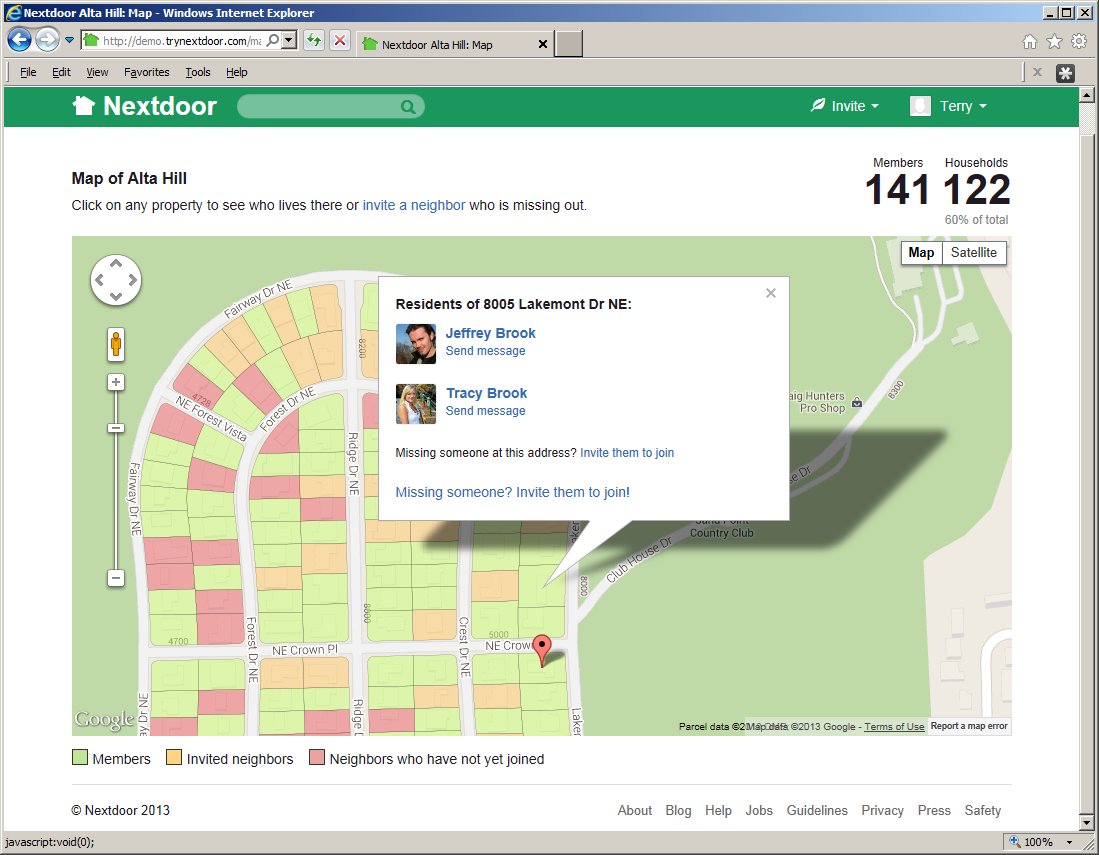
You can click the Send message link below a member's name to send them a private message. (For help with private messages, see Chapter 8, How to Read and Send Messages, Section 8.3, “Private Messages”.)
Note
To close the form that shows members at that address, click the X at the top right corner of the form.
You can also use the map to invite a neighbor to join Nextdoor:
Click an address on the map.
If you click a green address, a form that shows members at that address will come into view. If more neighbors live at that address, click the Missing someone? Invite them to join! link at the bottom of the form.
An “Invite a neighbor” form will come into view.
Click in the Email box. Type the neighbor's email address.
If you want to include a message for the neighbor, click in the Message (optional) box. Type a message.
To invite the neighbor, click the green button.
Note
If you do not want to invite the neighbor to join Nextdoor, click the button.
Nextdoor will send an invitation to the neighbor by email. If the neighbor accepts the invitation, you will get credit for the invitation.
Note
For more help with invitations, see Chapter 13, How to Invite Your Neighbors to Join Nextdoor.