If a neighbor posts a public message on Nextdoor, you will see that neighbor's name to the left of the message. (If the neighbor has a profile photo, you will also see their photo.)
Some neighbors do not post public messages, but you can use the “Neighbors” list to find them. To see the “Neighbors” list, click the Neighbors link near the top left corner of the home page:
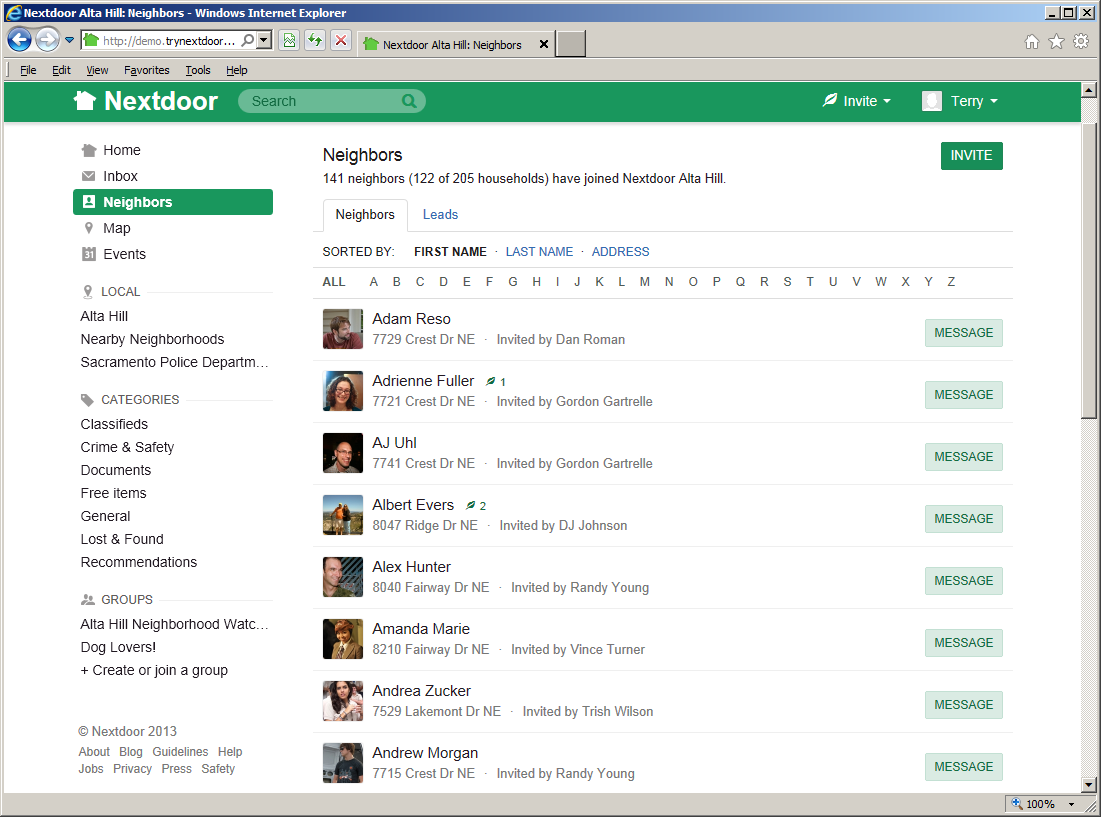
Here are some important items to know about the “Neighbors” list:
The list only shows Nextdoor members in your neighborhood, not Nearby Neighborhoods.
The list only shows 20 names at a time. To see more names, scroll down the page.
The list is shown in sequence by neighbors' first names. (For example, you will see a name such as “Alan Zellner” before a name such as “Zoe Adams”.) But you can click the LAST NAME link at the top of the list to see it in sequence by neighbors' last names. (Then you will see “Zoe Adams” before “Alan Zellner.”)
To see the list in sequence by street names (or numbers) and house numbers, click the ADDRESS link at the top of the list.
Note
Neighbors who let Nextdoor show their full address (with house numbers) are at the top of the list. The list is shown in sequence by their street names (or numbers) and house numbers. Neighbors who do not let Nextdoor show their full address are at the bottom of the list.
If you do not let Nextdoor show your full address, you will be near the bottom of the list. To change your address settings, see Chapter 7, How to Change Your Nextdoor Settings, Section 7.1, “Your Profile”.
To see only neighbors who live on a specified street:
Click the button at the top of the list. A list of street numbers and names will drop down.
Click a street number or name on the list. You will see a list of neighbors who live on that street.
To see the list in sequence by when neighbors joined Nextdoor, click the NEWEST link at the top of the list.
To see a neighbor's profile, click the neighbor's name on the list. (For more information about profiles, see Chapter 7, How to Change Your Nextdoor Settings, Section 7.1, “Your Profile”.)
To send the neighbor a private message, click the pale green button to the right of the neighbor's name. (For help with private messages, see Section 8.3, “Private Messages”.)
To find out which neighbor lives at a specified address, you can use the neighborhood map. For help with the map, see Chapter 11, How to Use the Neighborhood Map.