You can print flyers to give to neighbors in person, to put on neighbors' doors, or to post in a public place. Nextdoor will save the information for your flyer in a PDF (Portable Document Format) file. You can open and print the file with PDF software such as Adobe Reader.
Note
To download Adobe Reader, go to http://get.adobe.com/reader/.
To invite neighbors with flyers:
Click near the top right corner of the home page.
On the menu that drops down, click Flyers. A “Printable invitation gallery” page will come into view:
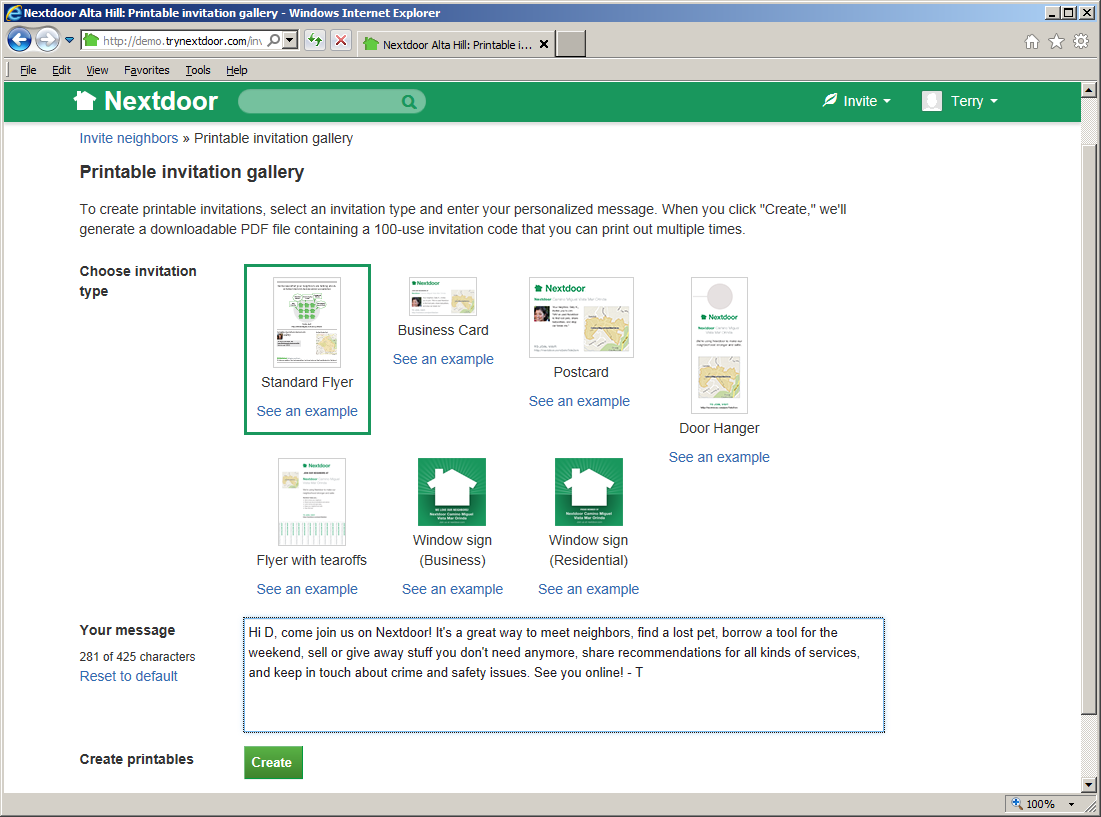
The page shows small pictures of different flyers:
Standard Flyer
Business Card
Postcard
Note
Nextdoor will send up to five postcard invitations for you each month at no cost. (For help with postcard invitations, see Section 13.2, “Invite Neighbors By Postcard”.) But you can print postcards if you want to send more than five postcards a month, or to have more control of the postcards. For example, you can print postcards on different colors of paper.
Door Hanger
Flyer with tearoffs
Window sign (Business)
Window sign (Residential)
To see a larger picture of a flyer, click the See an example link below the name of the flyer. To close the larger picture, click the at the top right corner of the picture.
Click the small picture of the flyer you want to use.
If you did not select “Window sign (Business)” or “Window sign (Residential),” you can add a message to the flyer. Click in the Your message box near the bottom of the page. Type the message that you want to include on the flyer.
Note
There is a limit to the length of the message you can type. If you select “Standard Flyer,” you can type up to 425 characters. If you select “Flyer with tearoffs,” you can type up to 175 characters. If you select “Business Card,” “Postcard,” or “Door Hanger,” you can type up to 140 characters. You cannot add a message to “Window sign (Business)” or “Window sign (Residential)” flyers.
To use a message that Nextdoor wrote, click the Reset to default link at the left side of the Your message box.
Click the green button. A “Your printable invitation is ready!” page will come into view.
Read the “Printing Instructions” section of the page for information about how to print and use the flyer.
Click the green button.
If your web browser asks if you want to “open or save” (or “download”) the file, click the “save” or “download” selection.
Possibly a dialog box from your computer will come into view. Use the dialog box to find the directory or folder on your computer where you want to save the file.
Use software such as Adobe Reader to open and print the file.