If you know a neighbor's email address, you can use it to invite them to join Nextdoor.
To invite neighbors by email:
Click near the top right corner of the home page.
On the menu that drops down, click Email. An “Invite your neighbors and friends to Nextdoor” page will come into view.
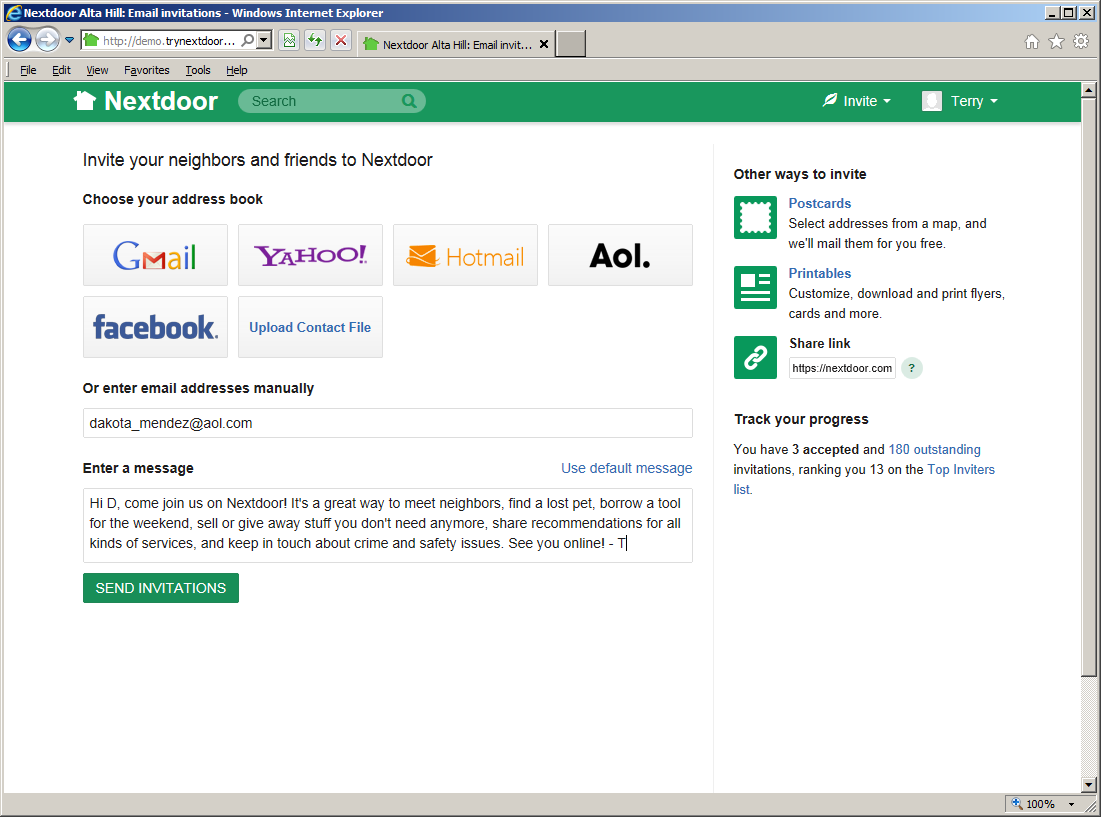
Select a procedure to enter one or more email addresses:
You can let Nextdoor read your contact list from an online account. Nextdoor can read contact information from a Gmail, Yahoo!, Hotmail, AOL, or Facebook account.
To let Nextdoor read contact information from an online account:
Click the button in the “Choose your address book” section for the account you want to use. For example, if you want to let Nextdoor read contact information from your Yahoo! account, click the button.
After you click the button, one or more new windows will possibly come into view. Read the procedures in the windows carefully, then do the procedures. These procedures will help you sign in to the online account that you chose and let Nextdoor read contact information from that account.
If Nextdoor can read the contact information, a list of names and email addresses will come into view. Above the list, you will see Select
##contact, where##is the number of names and addresses that Nextdoor read from your account.Caution
Initially, all the names and email addresses from your online account will be selected. Unless you want to invite all these people to join Nextdoor, click the box to the left of Select
##contact. Then you can select only the names and addresses of people you want to invite to join Nextdoor.To invite a person to join Nextdoor, make sure that the box to the left of their name is checked. If you do not want to invite a person to join, make sure their box is not checked.
Note
You can scroll up and down in the list of names and addresses. If the list of is long, you can use the Search box to look for a specified name. Click in the Search box, then type all or part of the name or address you want to find. (For example:
boborgmail.) The list will change to show only names or addresses that agree with the information you typed.
You can tell Nextdoor to read the contact list from email software such as Outlook, the Mac OS X address book, LinkedIn, the Windows address book, Windows Mail, or Palm Desktop.
To tell Nextdoor to read contact information from your email software:
Click the button in the “Choose your address book” section. An “Upload contact file” form will come into view. The “Upload contact file” form shows a list of email software.
Click the name of the email software that you use. A procedure to make a file that contains contact information will come into view.
Do the procedure for your email software.
After you make the file that contains contact information, click the green button. A dialog box from your computer will come into view.
Use the dialog box to find the directory or folder on your computer that contains the contact information file.
When you find the file, select it.
If Nextdoor can read the contact information, a list of names and email addresses will come into view. Above the list, you will see Select
##contact, where##is the number of names and addresses that Nextdoor read from the file.Caution
Initially, all the names and email addresses from the file will be selected. Unless you want to invite all these people to join Nextdoor, click the box to the left of Select
##contact. Then you can select only the names and addresses of people you want to invite to join Nextdoor.To invite a person to join Nextdoor, make sure that the box to the left of their name is checked. If you do not want to invite a person to join, make sure their box is not checked.
Note
You can scroll up and down in the list of names and addresses. If the list of is long, you can use the Search box to look for a specified name. Click in the Search box, then type all or part of the name or address you want to find. (For example:
boborgmail.) The list will change to show only names or addresses that agree with the information you typed.
You can type one or more email addresses manually:
Click in the Type or paste emails. Include one per line or separate with commas. box.
To type more than one address, press the <Enter> key or the comma (<,>) key on the keyboard after each email address.
Read the message in the Enter a message box.
If you want, you can change the message:
Click in the Enter a message box, then use the <Delete> and/or <Backspace> keys to delete text. Type the message you want to use.
To use a message that Nextdoor wrote, click the Use default message link at the right side of the Enter a message box.
To send the invitations, click the green button.
Note
To not send invitations, go back to the home page.
Nextdoor will send invitations to the email address or addresses you gave them. Invitations include your name (but not your email address) and the message from the Enter a message box. If a person who receives an invitation wants to join Nextdoor, they can click the green button in the email.
Note
If the person does not accept the first invitation, Nextdoor will send them up to four reminder emails. If the person does not want to receive more emails about your invitation, they can click the “unsubscribe” link at the bottom of the email.
If you do not want to use the above procedure, you can send your neighbor an invitation link with your usual email software:
Find and copy your invitation link:
Click near the top right corner of the home page.
On the menu that drops down, click Link. An “Sharable invitation link” page will come into view.
Click the green button to copy the link to your computer's memory. The message
Link copied to clipboardwill come into view above the button for a short time.
Start your email software.
Start a new email.
Enter the address or addresses of the people you want to invite as usual.
Type a short description of your message in the Subject line of the email. For example:
Come join your neighbors on NextdoorUse the “paste” function in your email software or your computer's operating system to paste your invitation link in the body of the email.
For example, if your email software has an menu, you can click , then .
On a Windows computer, you can use one of two procedures to paste the link:
Right-click in the body of the email. On the menu that comes into view, click .
Click in the body of the email, then press <Ctrl>+<V>.
If you want to include a message to your neighbor, press <Enter> one or two times to make some empty space. Then type your message.
Send the email as usual.