After you sign in to Nextdoor for Android, the home screen will come into view:
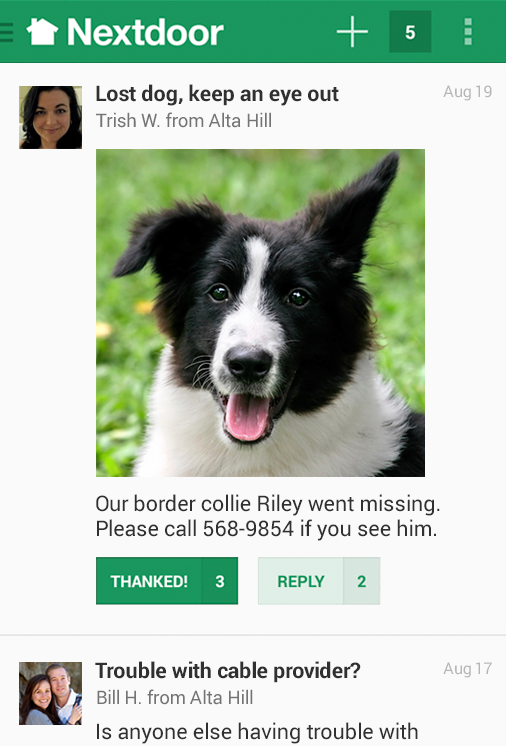
From the home screen, you can:
read messages, reply to messages, or thank neighbors for their messages. For help with this, see Section 17.5, “How to Read Messages with Nextdoor for Android”.
welcome new members to Nextdoor. For help with this, see Section 17.10, “How to Invite Your Neighbors to Join with Nextdoor for Android”.
tap ≡ at the top left corner of the screen to see items in different categories:
Home: Tap Home to see the home screen.
Inbox: Tap Inbox to see private messages that you sent to other neighbors, or that other neighbors sent to you. For help with your inbox, see Section 17.7, “How to Send and Read Private Messages with Nextdoor for Android”.
Neighbors: Tap Neighbors to see a list of Nextdoor members in your neighborhood. For help with the neighbors list, see Section 17.9, “How to Find a Neighbor with Nextdoor for Android”.
Invite Neighbors: Tap Invite Neighbors to invite people to join Nextdoor. For help with invitations, see Section 17.10, “How to Invite Your Neighbors to Join with Nextdoor for Android”.
A “LOCAL” section that includes:
your neighborhood's name: Tapyour neighborhood's nameto see only messages from your neighborhood.Nearby Neighborhoods: Tap Nearby Neighborhoods to see messages from your neighborhood, and also residents of Nearby Neigborhoods. For help with Nearby Neighborhoods settings, see Section 17.11, “How to Change Your Settings with Nextdoor for Android”.
If your city is a member of the Nextdoor City Program, a link to information from your city officials, police department, and/or fire department. For more information on the Nextdoor City Program, go to http://help.nextdoor.com/customer/portal/articles/1148541-what-is-the-nextdoor-city-program-?b_id=98.
A “CATEGORIES” section that includes:
Classifieds: Tap Classifieds to see messages about items that neighbors want to sell or buy.
Crime & Safety: Tap Crime & Safety to see messages about crime and safety.
Documents: Tap Documents to see a list of files that neighbors share with other neighbors.
Files can be in different formats, for example:
Picture or photo files can have names that end with
.GIF,.JPG,.JPEG, or.PNG.Portable Document Format files have names that end with
.PDF. You can open PDF files with software such as Adobe Reader.Microsoft Word format files have names that end with
.DOCor.DOCX. You can open these files with Microsoft Word.Microsoft Excel format files have names that end with
.XLSor.XLSX. You can open these files with Microsoft Excel.
Nextdoor for Android can open files in the above formats. If a neighbor shares a file in a different format, Nextdoor for Android possibly will not open the file.
Free items: Tap Free items to see messages about items that neighbors want to give away for free.
General: Tap General to see messages that do not fit into some other category.
Lost & Found: Tap Lost & Found to see messages about lost or found pets or items.
Recommendations: Tap Recommendations to see messages about companies or services neighbors used, and if the neighbors recommend those companies or services.
A “GROUPS” section that shows a list of the public and private groups of which you are a member. For help with groups, see Section 17.8, “How to Use Groups on Nextdoor for Android”.
post new messages. For help with this, see Section 17.6, “How to Post Public Messages with Nextdoor for Android”.
see notifications of new activity on Nextdoor
tap the ┇ symbol at the top right corner of the screen to see these items:
INVITE NEIGHBORS: Tap INVITE NEIGHBORS to invite neighbors to join Nextdoor. For more help, see Section 17.10, “How to Invite Your Neighbors to Join with Nextdoor for Android”.
REFRESH: Tap REFRESH to update the home screen (to see if new messages were posted).
Note
You can also drag down with your finger from the top of the screen to refresh the screen.
SETTINGS: Tap SETTINGS to change your Nextdoor for Android settings. For help with your Nextdoor for Android settings, see Section 17.11, “How to Change Your Settings with Nextdoor for Android”.
ABOUT: Tap ABOUT to see information about Nextdoor.
The ABOUT information includes:
the version number of the Nextdoor for Android app
Nextdoor's Manifesto
buttons to let you see Nextdoor's Privacy Policy and Member Agreement
HELP: Tap HELP to go to Nextdoor's “help” page. For help with Nextdoor's “help” page, see Section 17.12, “How to Get Help for Nextdoor for Android”.
CONTACT US: Tap CONTACT US to send a message to Nextdoor. For more help, see Section 17.12, “How to Get Help for Nextdoor for Android”.