The list of messages on the home page is very long. To find a message that a neighbor posted more than a week or two ago, you can scroll far down the home page. As an alternative, you can look at messages in a specified category or group. You can also search for messages.
To look at messages in a specified category or group, click the category or group's link at the left side of the home page:
Classifieds: Click this link to see messages about items that neighbors want to sell or buy.
Crime & Safety: Click this link to see messages about crime and safety.
Documents: Click this link to see a list of files that neighbors share with other neighbors.
Files can be in different formats, for example:
Picture or photo files can have names that end with
.GIF,.JPG,.JPEG, or.PNG.Portable Document Format files have names that end with
.PDF. You can open PDF files with software such as Adobe Reader.Microsoft Word format files have names that end with
.DOCor.DOCX. You can open these files with Microsoft Word.Microsoft Excel format files have names that end with
.XLSor.XLSX. You can open these files with Microsoft Excel.
Free items: Click this link to see messages about items that neighbors want to give away for free.
General: Click this link to see messages that do not fit into some other category.
Lost & Found: Click this link to see messages about lost or found pets or items.
Recommendations: Click this link to see messages about companies or services neighbors used, and if the neighbors recommend those companies or services.
The “GROUPS” section shows links to the public and private groups of which you are a member. Click a group's name to see messages in that group.
To search for messages that contain one or more specified words:
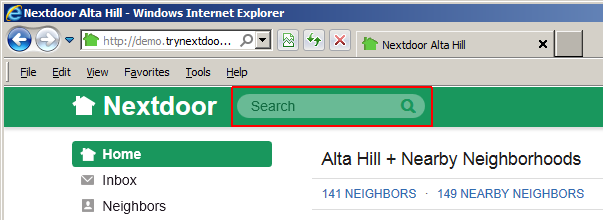
Click in the Search box near the top left corner of the page:
Type one or more words:
If you type one word, Nextdoor will find messages that contain that word.
If you type more than one word, Nextdoor will find messages that contain all the words you typed. For example, if you type
dog cat, Nextdoor will find messages that include the worddogand the wordcat.If you type a minus sign (
-) in front of a word, Nextdoor will find messages that do not contain that word. For example, if you typedog -cat, Nextdoor will find message that include the worddogbut not the wordcat.
Press <Enter> on the keyboard or click the “magnifiying glass” symbol at the right side of the Search box. A “Search results for '
your word(s)'” page will come into view: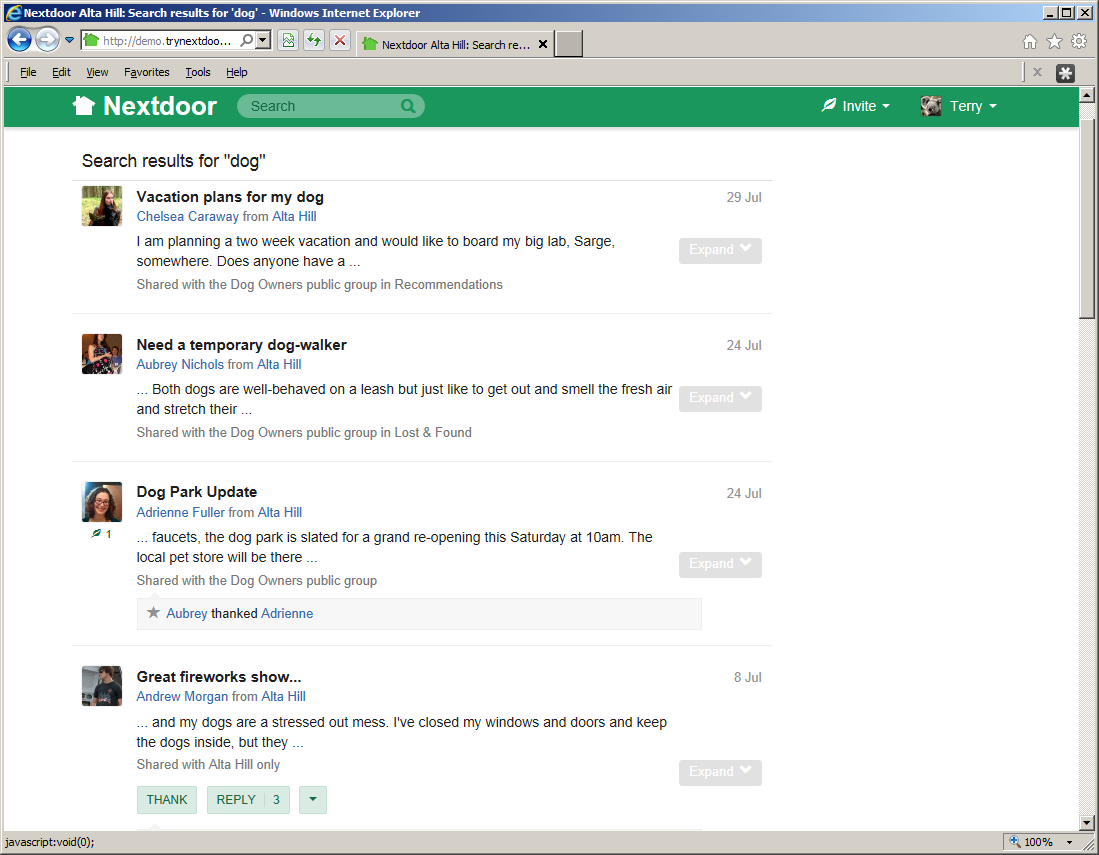
The “Search results for '
your word(s)'” page shows a list of messages and events that contain your word or words. To see a full message, click the subject (description) of the message. For example, to see the full message about the dog park, click Dog Park Update.