The home screen shows public messages and messages posted to your groups. Nextdoor for Android shows the first three lines of each message. If a message is longer than that, you can tap the subject (description) at the top of the message to see the full message:
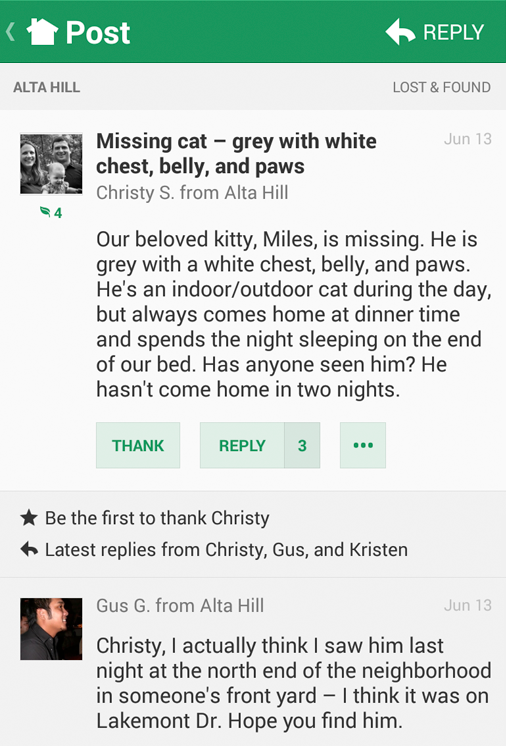
If there are one or more replies to the message, you will see those when you see the full message. To go back to the home screen after you read the message, tap < at the top left corner of the screen.
The list of messages is too long to fit on one screen. But you can use your finger to drag up or down to scroll.
To read only messages in a specified category, tap ≡ at the top left corner of the screen then tap the category:
Home: Tap Home to see the home screen.
Inbox: Tap Inbox to see private messages that you sent to other neighbors, or that other neighbors sent to you. For help with private messages, see Section 17.1.7, “How to Send and Read Private Messages with Nextdoor for iPhone”.
Neighbors: Tap Neighbors to see a list of Nextdoor members in your neighborhood. For help with the neighbors list, see Section 17.1.9, “How to Find a Neighbor with Nextdoor for iPhone”.
A “LOCAL” section that includes:
your neighborhood's name: Tapyour neighborhood's nameto see only messages from your neighborhood.Nearby Neighborhoods: Tap Nearby Neighborhoods to see messages from your neighborhood, and also residents of Nearby Neigborhoods. For help with Nearby Neighborhoods settings, see Section 17.1.11, “How to Change Your Settings with Nextdoor for iPhone”.
Nearby Leads: If you are a lead user, you can tap Nearby Leads to see messages in this private group. The “Nearby Leads” group includes leads from your neighborhood and all Nearby Neighborhoods that have completed the “pilot” stage (with 10 or more verified members). For help with the “Nearby Leads” group, see Chapter 16, Help for Lead Users, Section 16.9, “The “Nearby Leads” Private Group”.
If your city is a member of the Nextdoor City Program, a link to information from your city officials, police department, and/or fire department. For more information on the Nextdoor City Program, go to http://help.nextdoor.com/customer/portal/articles/1148541-what-is-the-nextdoor-city-program-?b_id=98.
A “CATEGORIES” section that includes:
Classifieds: Tap Classifieds to see messages about items that neighbors want to sell or buy.
Crime & Safety: Tap Crime & Safety to see messages about crime and safety.
Documents: Tap Documents to see a list of files that neighbors share with other neighbors.
Files can be in different formats, for example:
Picture or photo files can have names that end with
.GIF,.JPG,.JPEG, or.PNG.Portable Document Format files have names that end with
.PDF. You can open PDF files with software such as Adobe Reader.Microsoft Word format files have names that end with
.DOCor.DOCX. You can open these files with Microsoft Word.Microsoft Excel format files have names that end with
.XLSor.XLSX. You can open these files with Microsoft Excel.
Nextdoor for Android can open files in the above formats. If a neighbor shares a file in a different format, Nextdoor for Android possibly will not open the file.
Free items: Tap Free items to see messages about items that neighbors want to give away for free.
General: Tap General to see messages that do not fit into some other category.
Lost & Found: Tap Lost & Found to see messages about lost or found pets or items.
Recommendations: Tap Recommendations to see messages about companies or services neighbors used, and if the neighbors recommend those companies or services.
A “GROUPS” section that shows a list of the public and private groups of which you are a member. For help with groups, see Section 17.1.8, “How to Use Groups on Nextdoor for iPhone”.
Caution
When you tap or , neighbors who can see the initial message can see your name. If you reply to a public message, neighbors who can see the initial message can also see your message.
If residents of Nearby Neighborhoods can see the initial message, they can see your name/message. They can also see some or all of your profile information.
For more information about Nearby Neighborhoods, see Chapter 6, Nearby Neighborhoods. For help with your Nearby Neighborhood settings in Nextdoor for Android, see Section 18.11, “How to Change Your Settings with Nextdoor for Android”.
If you agree with a message or think the information in the message is good, you can tap . will change to , and the message Thanked by you will come into view below the message.
Note
If one or more neighbors tap , you will see a number at the right side of . For example, you will see if three neighbors tapped .
Note
If you tapped by accident (and changed to ), you can tap . The number at the right side of will decrease by 1, and Nextdoor will remove your name from the Thanked by... message.
If you tap , you do not need to reply to the message. (But you can reply if you want to.)
To reply to a public message:
Tap .
Note
If one or more neighbors reply to the message before you do, you will see a number at the right side of button. For example, you will see if two neighbors replied to the message.
An “Add a reply” box will come into view. Use the onscreen keyboard to type your message.
Tap at the top right corner of the screen to send your reply.
Note
To not send a reply, tap at the top left corner of the screen.
If you see a public message that contains bad language, advertising, or other inappropriate information, you can “flag” the message. This tells the lead user(s) for your neighborhood that the message must be reviewed and possibly deleted.
To flag a message:
Tap the subject (description) at the top of the message to see the full message.
Tap below the message.
Tap .
A “Please select a reason” form will come into view.
Tap a reason:
If you tap again, you will see the message .