If you reply to a public message, neighbors who can see the initial message will see the information you type. But you can send a private message to a neighbor.
To send a private message:
If the neighbor posted a public message, you can click the neighbor's name or photo on that public message.
Note
You will see the neighbor's name below the subject of the message. If the neighbor has a profile photo, you will see their photo to the left of the message's subject. If the neighbor does not have a profile photo, you will see a standard picture of a “female” or “male” head.
The neighbor's profile page will come into view. Click the pale green button near the top of the profile page.
You can use the “Neighbors” page to find a neighbor in your neighborhood.
To see the “Neighbors” page, click the Neighbors link at the left side of the home page.
Scroll down the page until you see the neighbor you want to send a message to.
Click the pale green button to the right of the neighbor's name.
Note
For more help with the “Neighbors” page, see Chapter 10, How to Find a Neighbor on Nextdoor.
A “Send a message to
neighbor's name” form will come into view: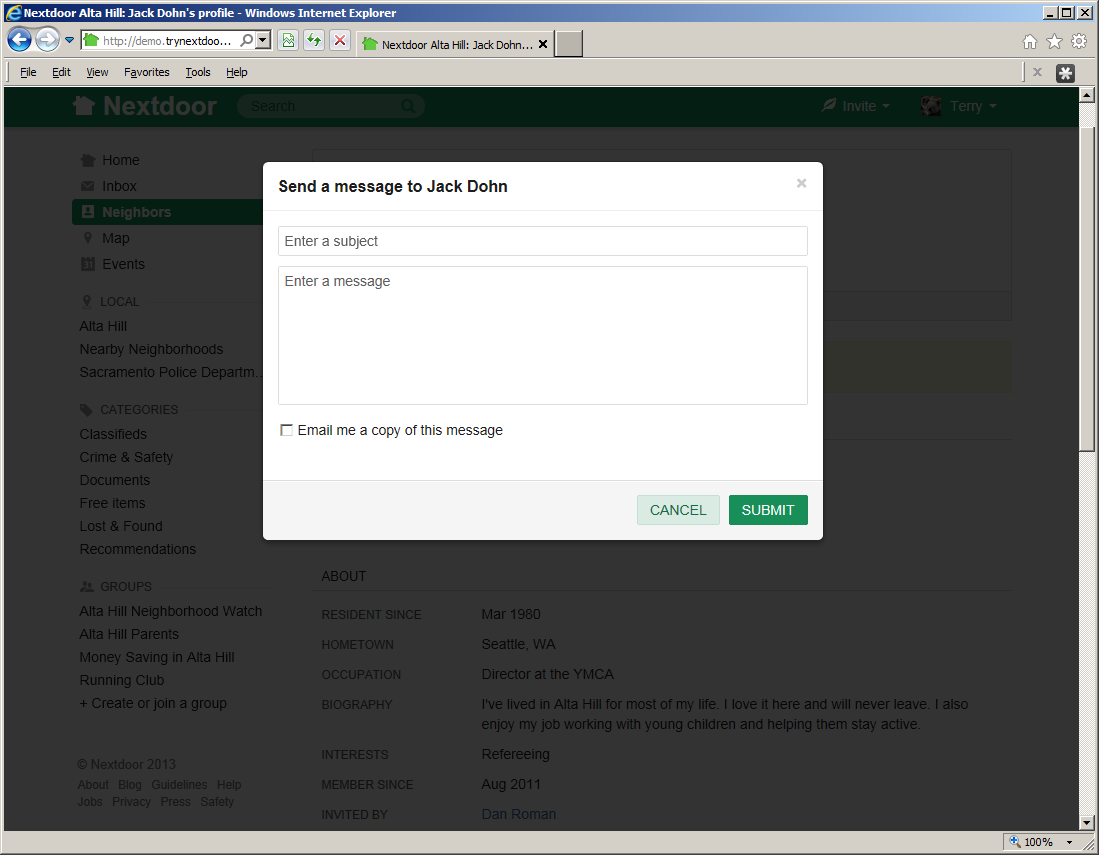
Click in the Enter a subject box. Type a short description for your message.
Click in the Enter a message box. Type your message.
If you want Nextdoor to send you a copy of this message by email, click the Email me a copy of this message box.
To send the message, click the green button.
Note
To cancel the message, click the pale green button.
To read private messages:
Click the Inbox link at the left side of the home page.
Note
If your Inbox contains messages you have not read, you will see a number to the right of Inbox. For example, if you see the number
2to the right of Inbox, you have two new messages.An “Inbox” page will come into view. Messages that you have read will have a gray background. New messages will have a white background.
Note
Your Inbox shows only the 100 newest messages.
To see a full message, click the subject (description) of the message.
If you want, you can move messages you have read out of your Inbox to the “Archive” area. This lets you keep your Inbox clean.
To move a message from your Inbox to the Archive:
Click the Inbox link at the left side of the home page to view a list of messages in your Inbox.
Click the Archive link at the right side of the message that you want to move. The message will be immediately moved.
To view archived messages:
Click the Inbox link at the left side of the home page to view a list of messages in your Inbox.
Click the View Archive link near the top right corner of the page. An “Archive” page will come into view.
To move an archived message back to the Inbox, click the Move to Inbox link at the right side of the message.